 In the last post I started exploring audio expressions with Corel Painter.
Moving a little further into that territory I wanted to share how to set up Audio Expression using color sets. Its a pretty simple step that can give you some interesting color effects.
________________________________________
First off you will need Corel Painter 2018 (or 2017).
Open it and open an image that you like.
I’m going to use this painting of the 19th century impressionist painter Claude Monet by the contemporary impressionist painter Alex Kanevsky.
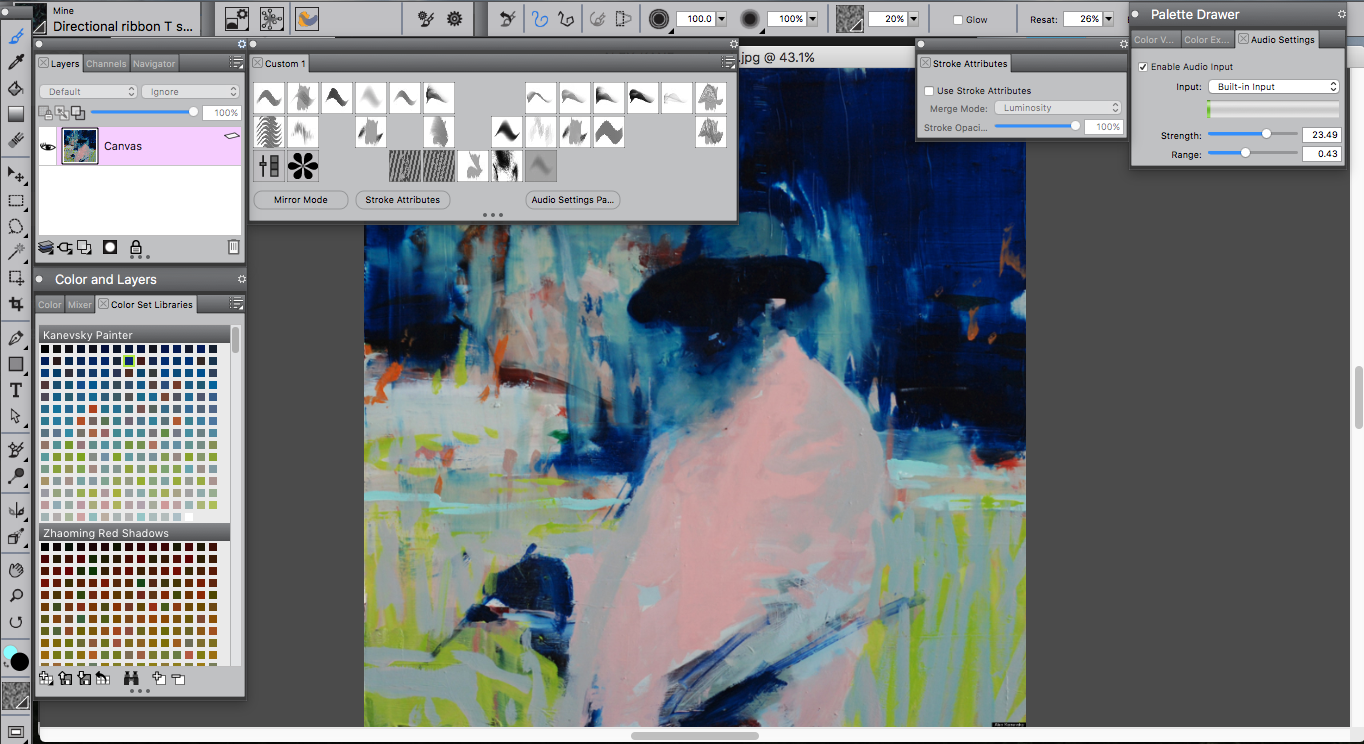 I think it is fitting and it has interesting colors.
To paint with audio expressions and color sets you will need to do a few things…
Start by going to the “Colors and Layers” tab.
then click on the “Color Set Libraries” tab
click the icon in the bottom left hand corner and hit “New Color Set”
then “new color set from image”
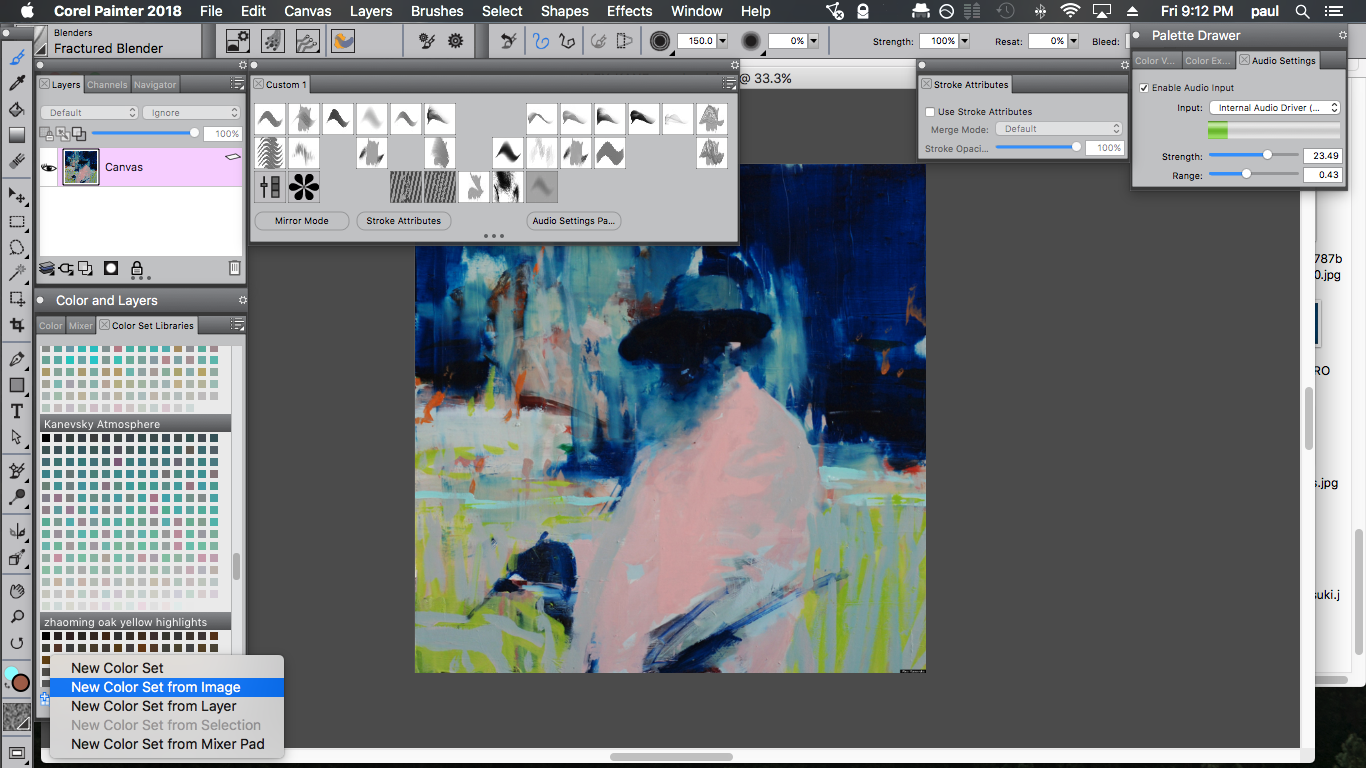 pick a name and number of colors you want in your color set.
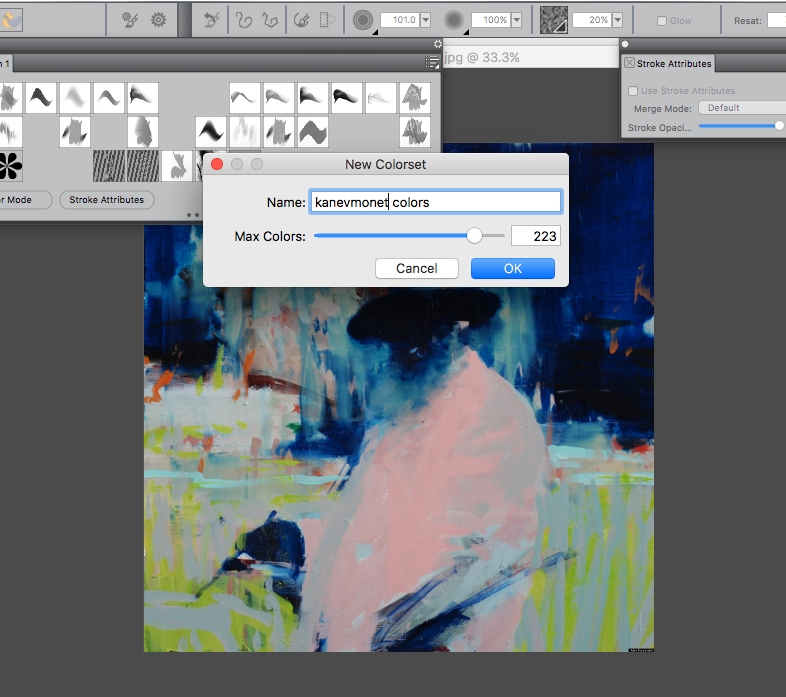 I recommend something over 100.
click “ok” and your color set should appear in the color set libraries tab.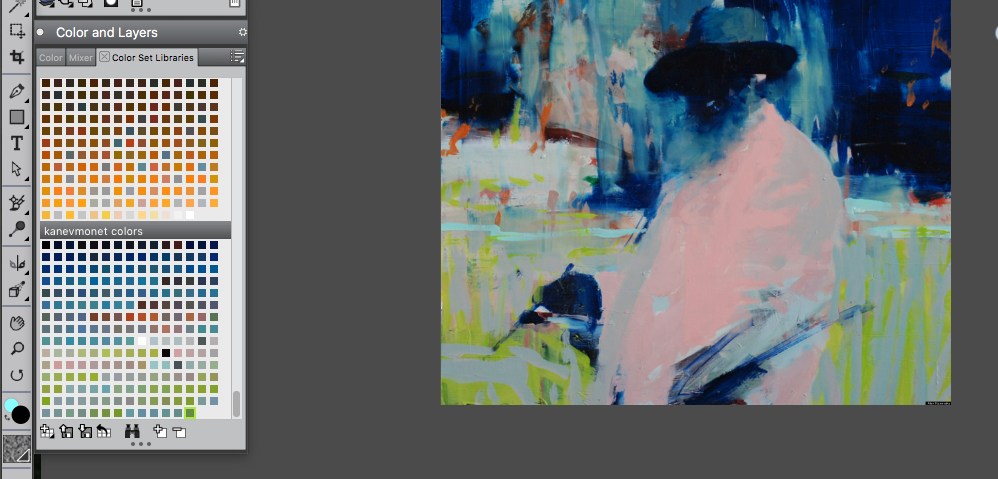
click on a color swatch to select the new color set.
Pick a particle brush from the Brush Selector Panel at the top left: 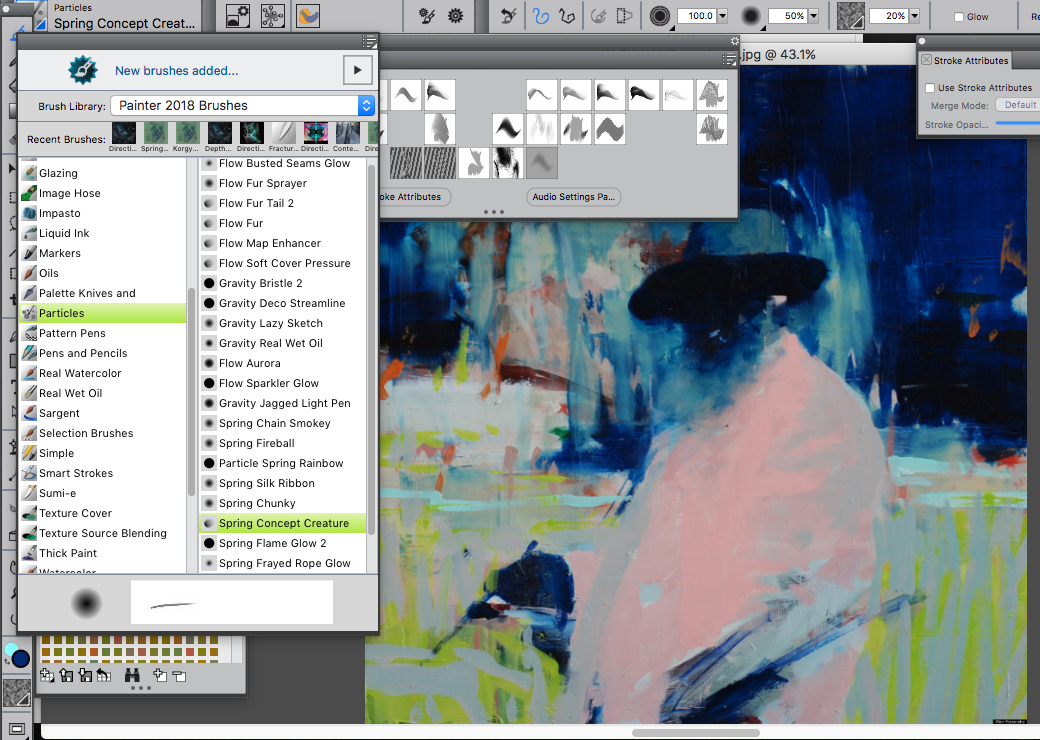
Once you are using a particle brush go to and select Window/Audio Settings Panel
then click “enable audio input”
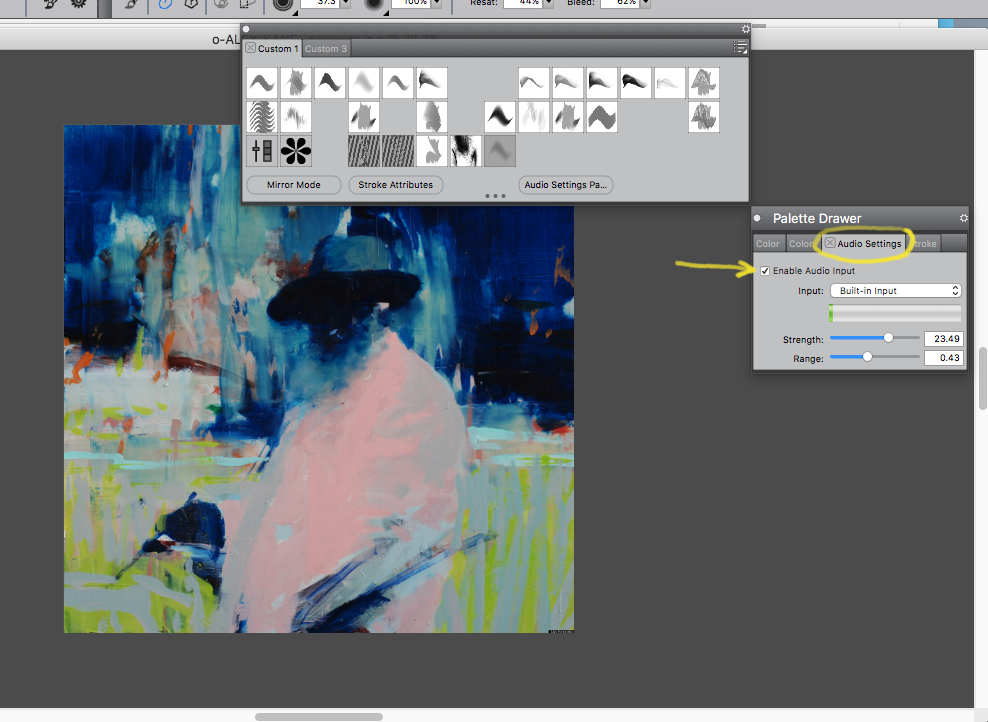
You may need to mess with the Strength and Range a bit.
Afterwards go to and select Window/Brush Control Panels/ Color Variability.
In the Color Variability Tab select “from Color Set” and check
“Color variability from Audio Input”.
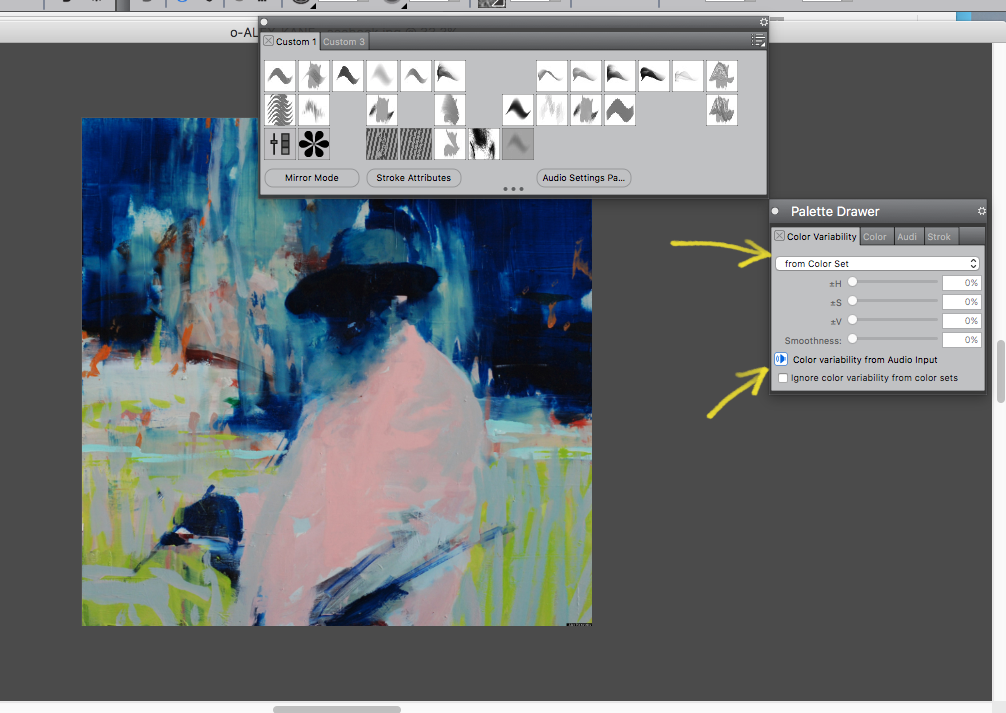
Now you can play some music from an mp3 and start painting with
Audio Expressions from a color set.
Experiment and see what you can come up with.
Enjoy!