Uncategorized

In this post we will combine audio expression and mirror painting in Corel Painter.

It’s pretty simple.

First you set up audio expressions as shown in the last blog post 

Then just click the “mirror painting” button in the corner before you get to painting with the brush tool.

like this:
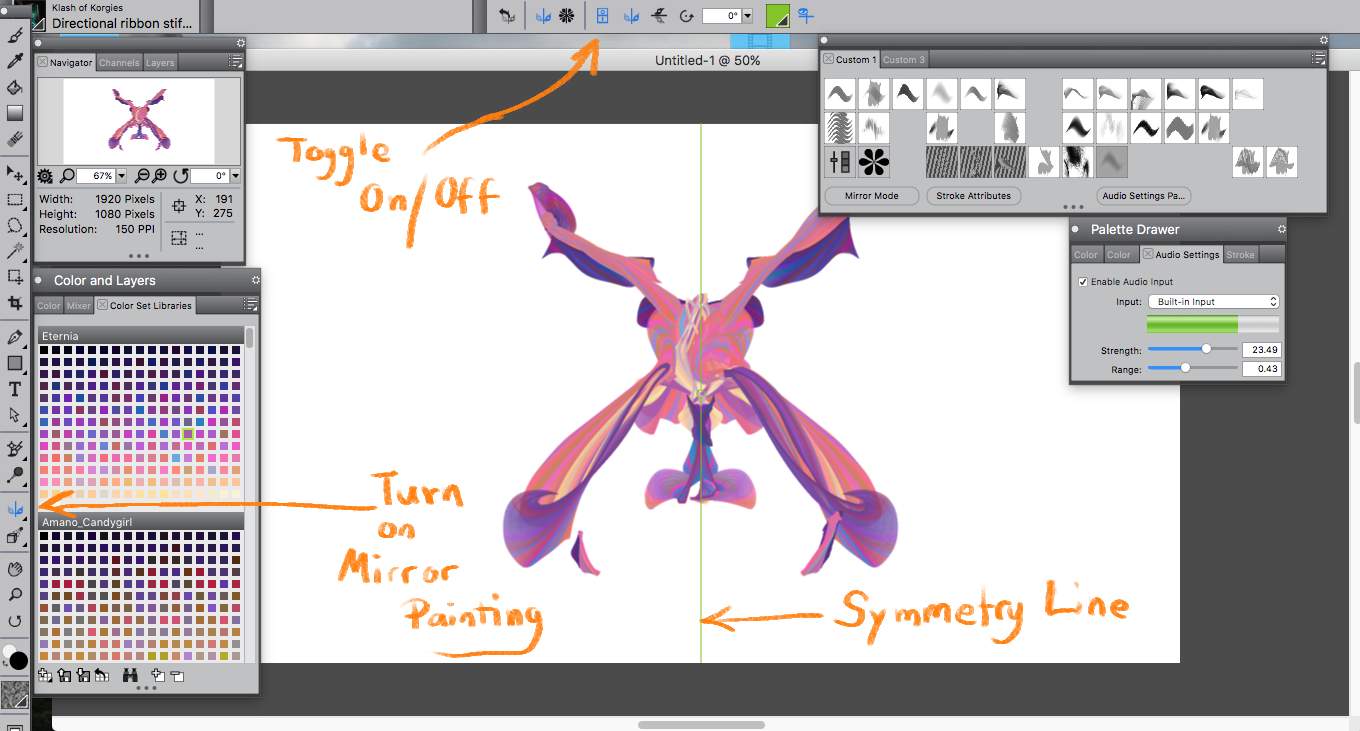
Cross over the symmetry line while you paint to automatically create interesting and beautiful shapes.

Play around and let the brush do some of the work for you.

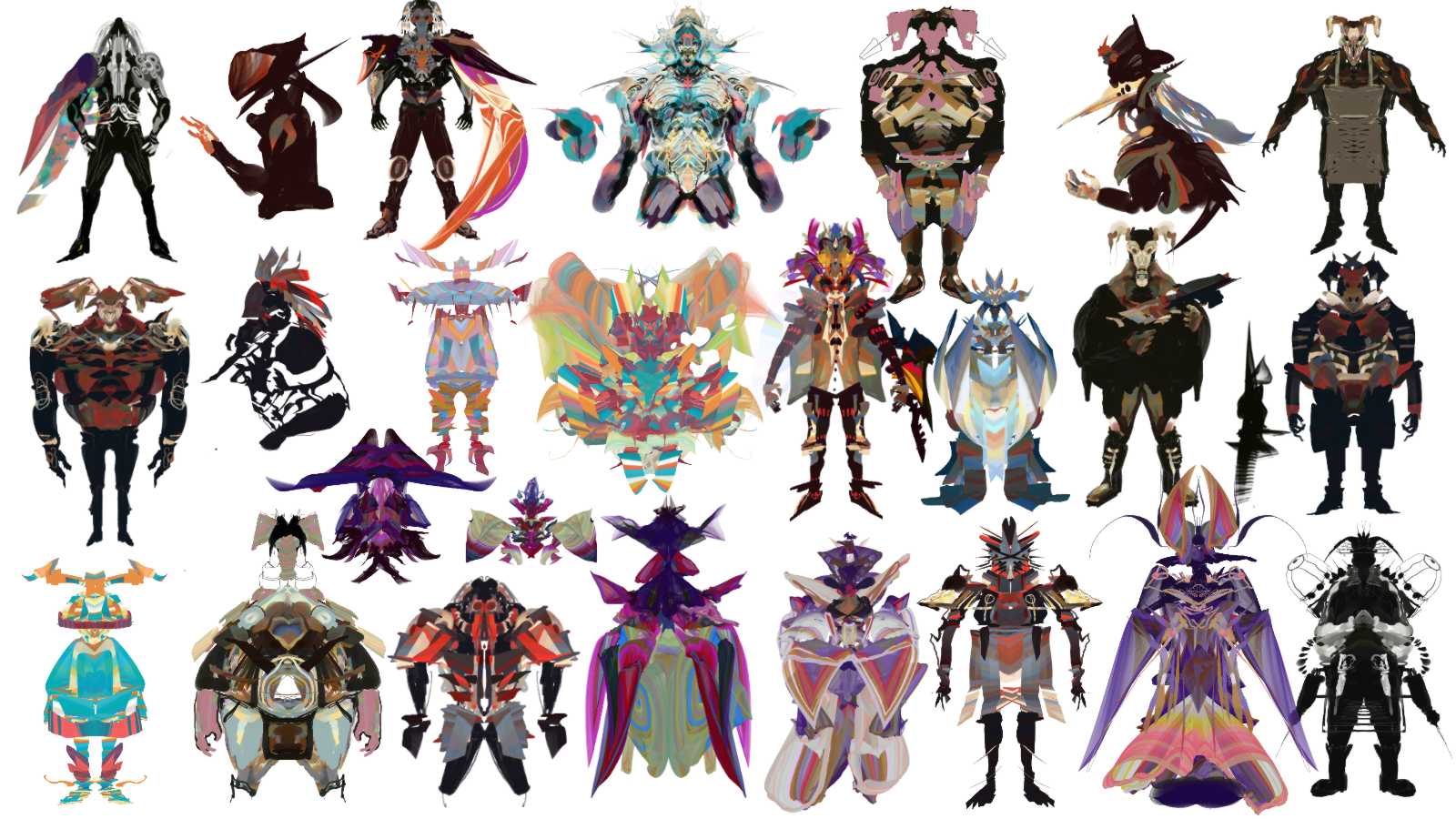
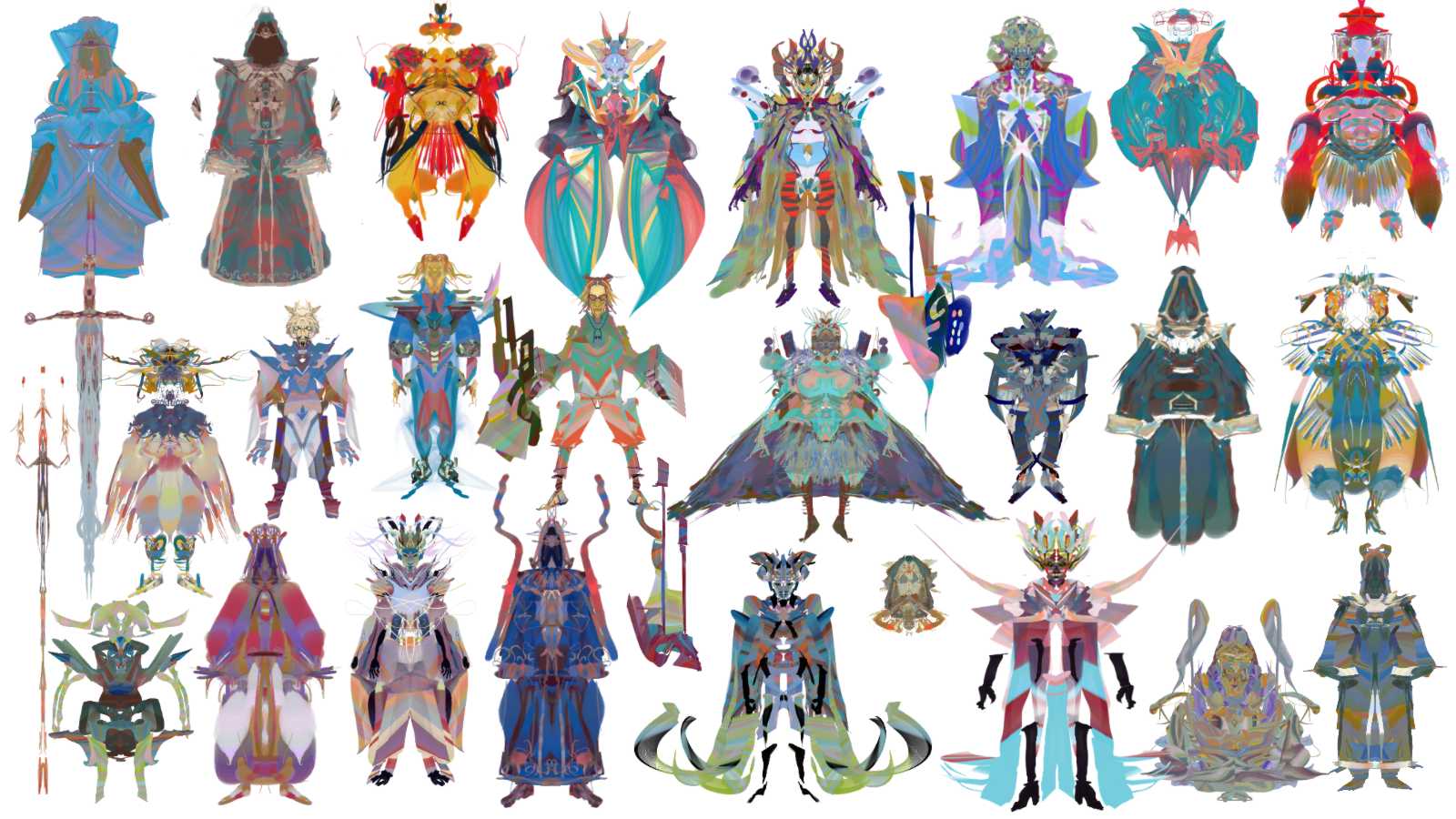
I used this technique in the last 2 Artstation character design challenges and I was pretty happy with the results.  It enables you to create designs very quickly without sapping all your creative energy.

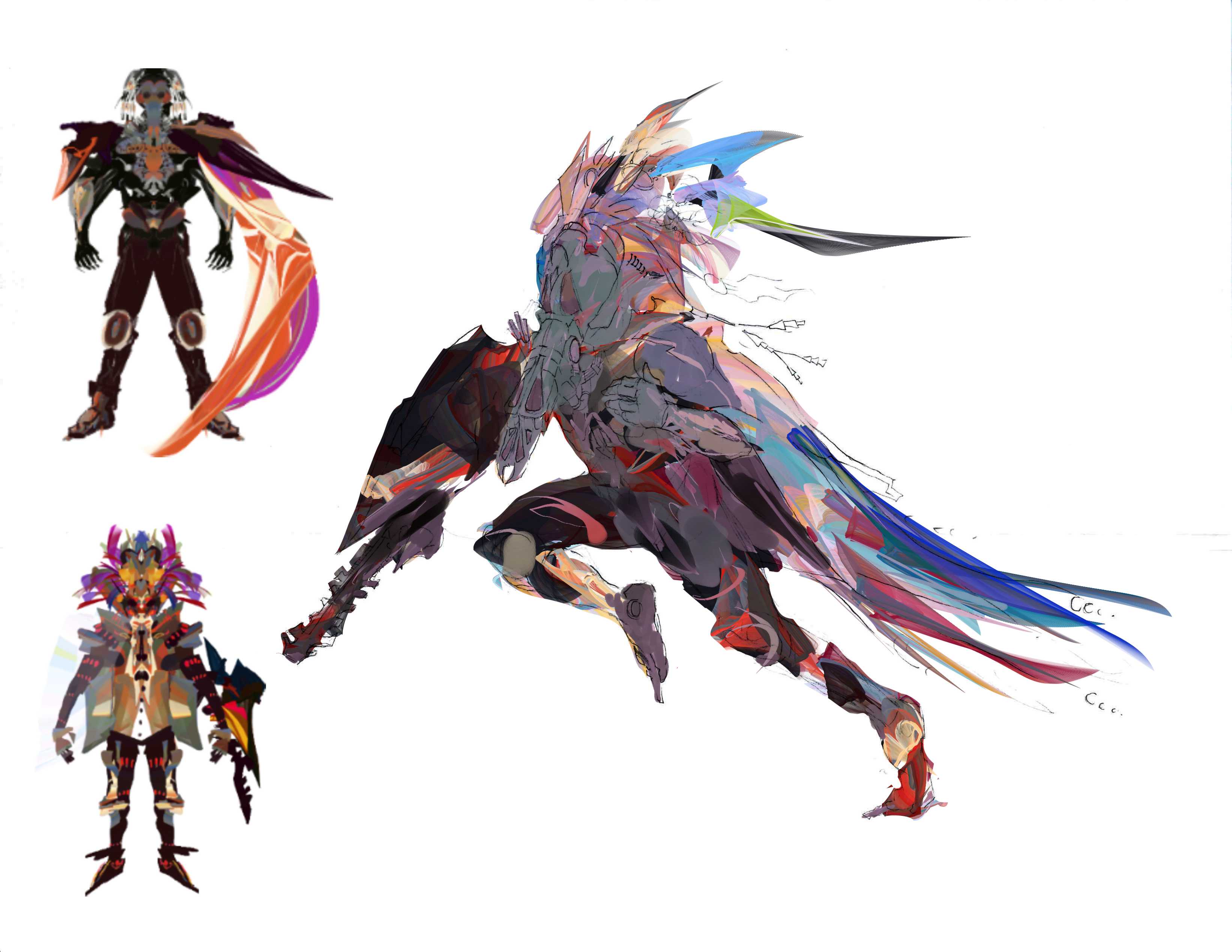
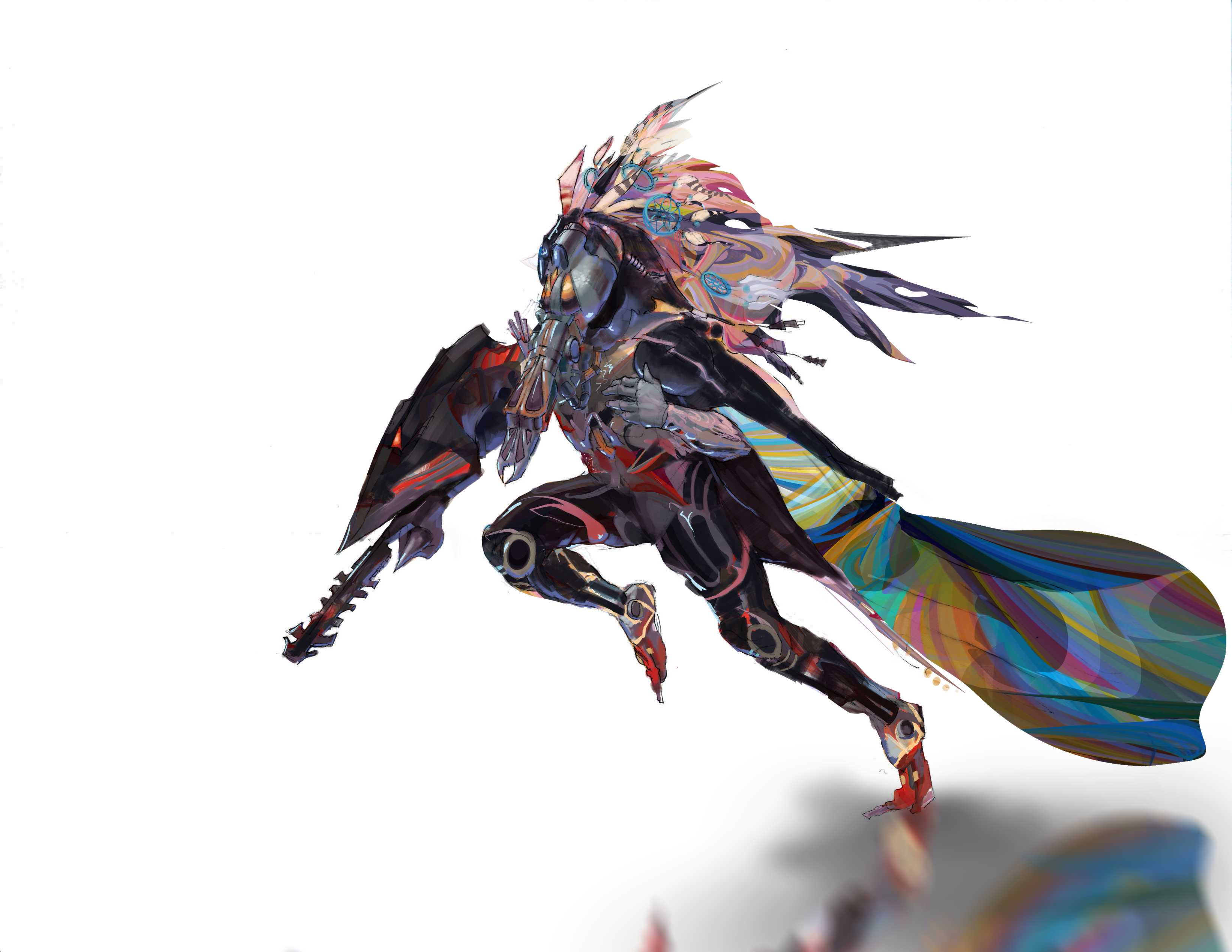
I came up with one of my favorite characters this way:

The Space Musician!
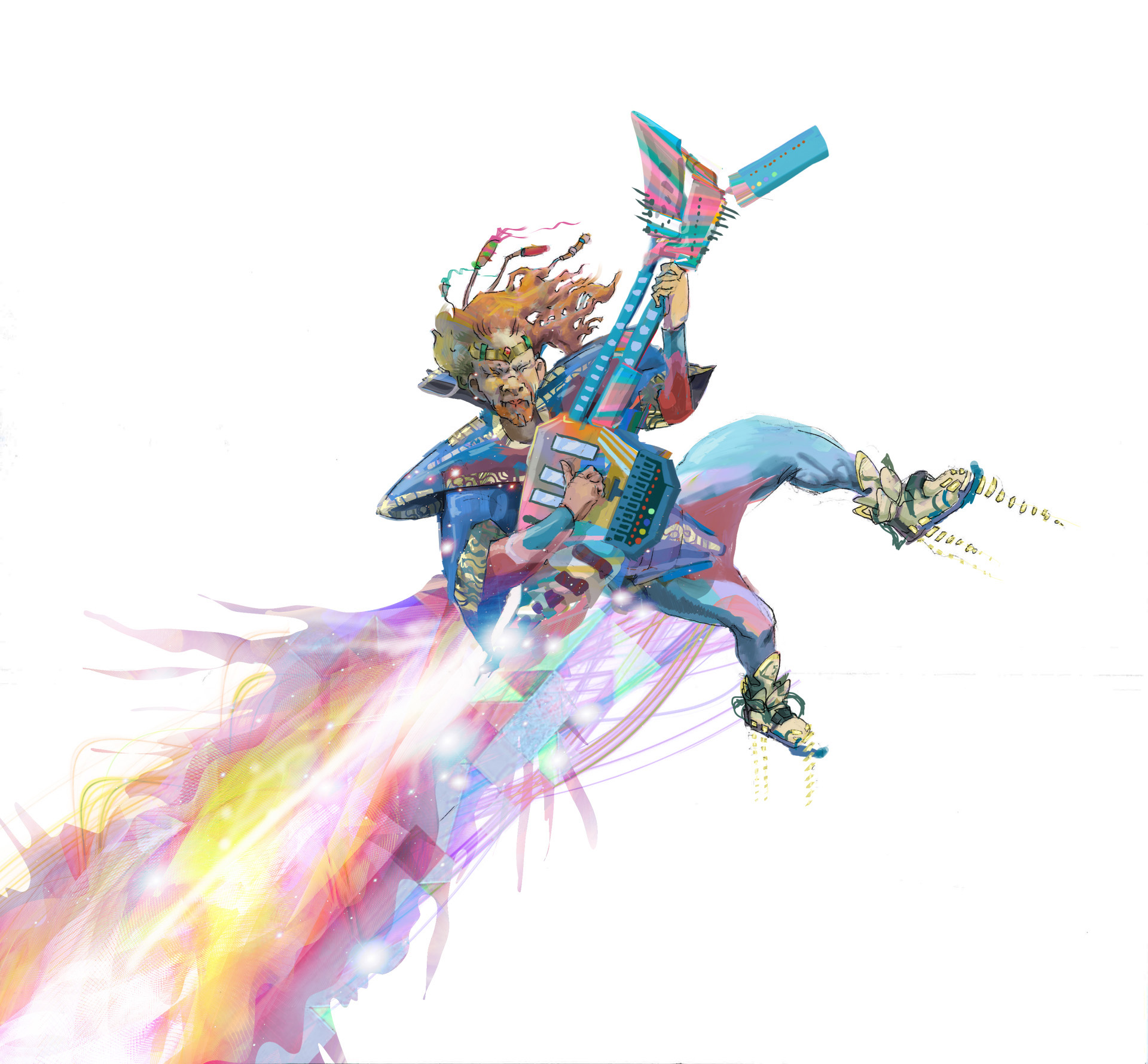
I had a vague idea of this character in my head, so I started scribbling with symmetry on.  I made multiple sketches but of course the first one was the one I liked best.
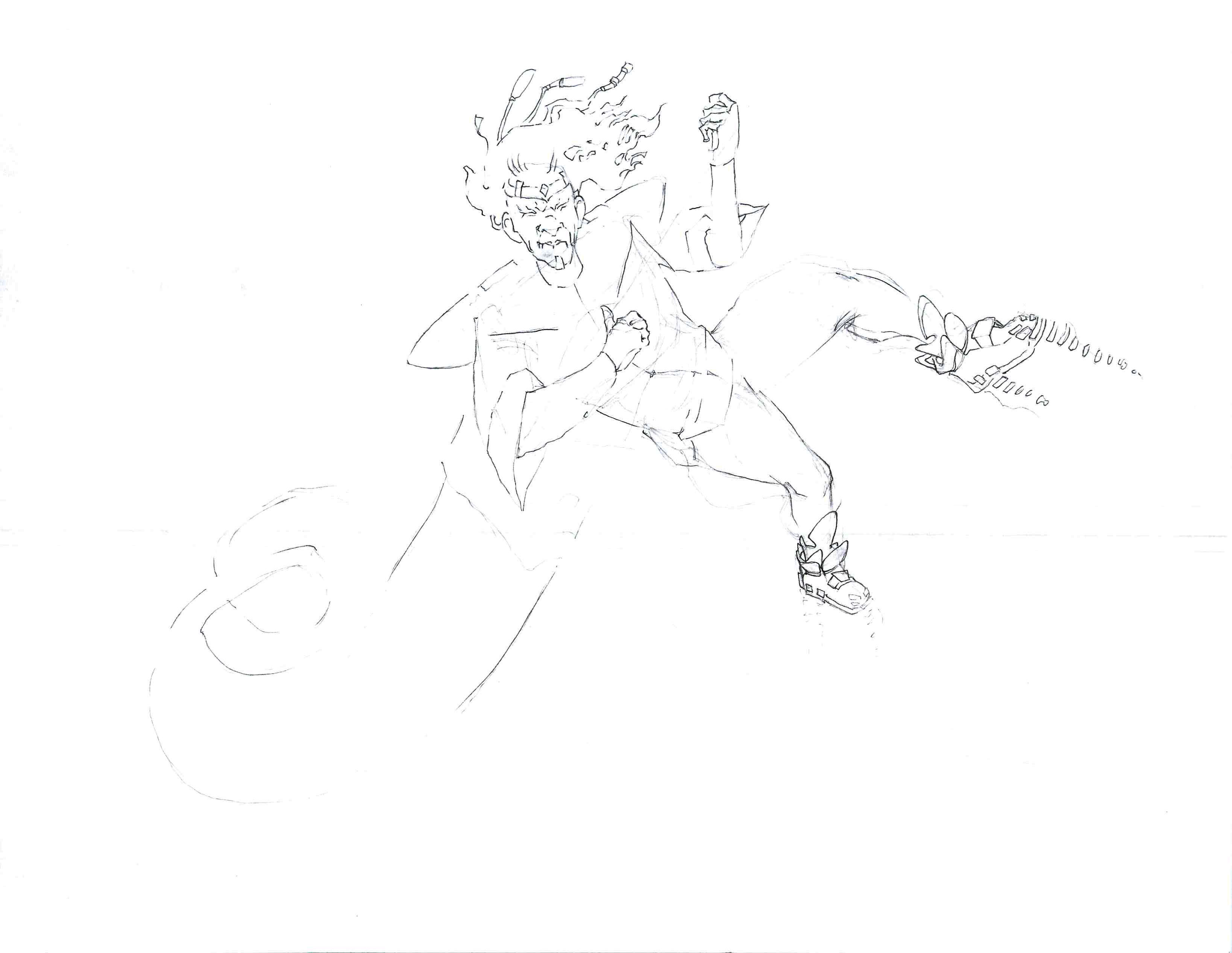
I used the sketch as a reference to base a line drawing and my colors off of.
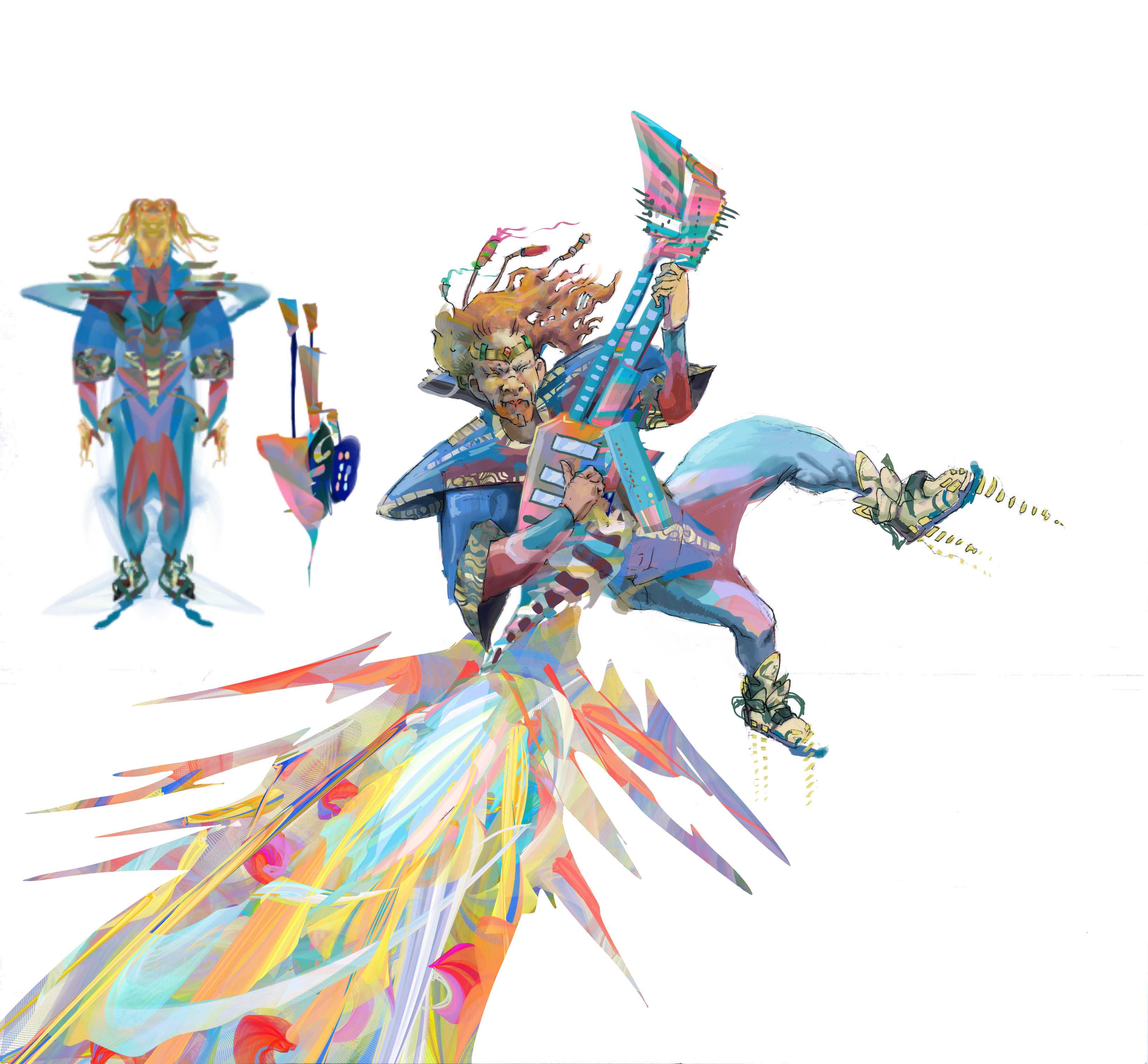
After that, it was just a lot of time rendering and detailing.

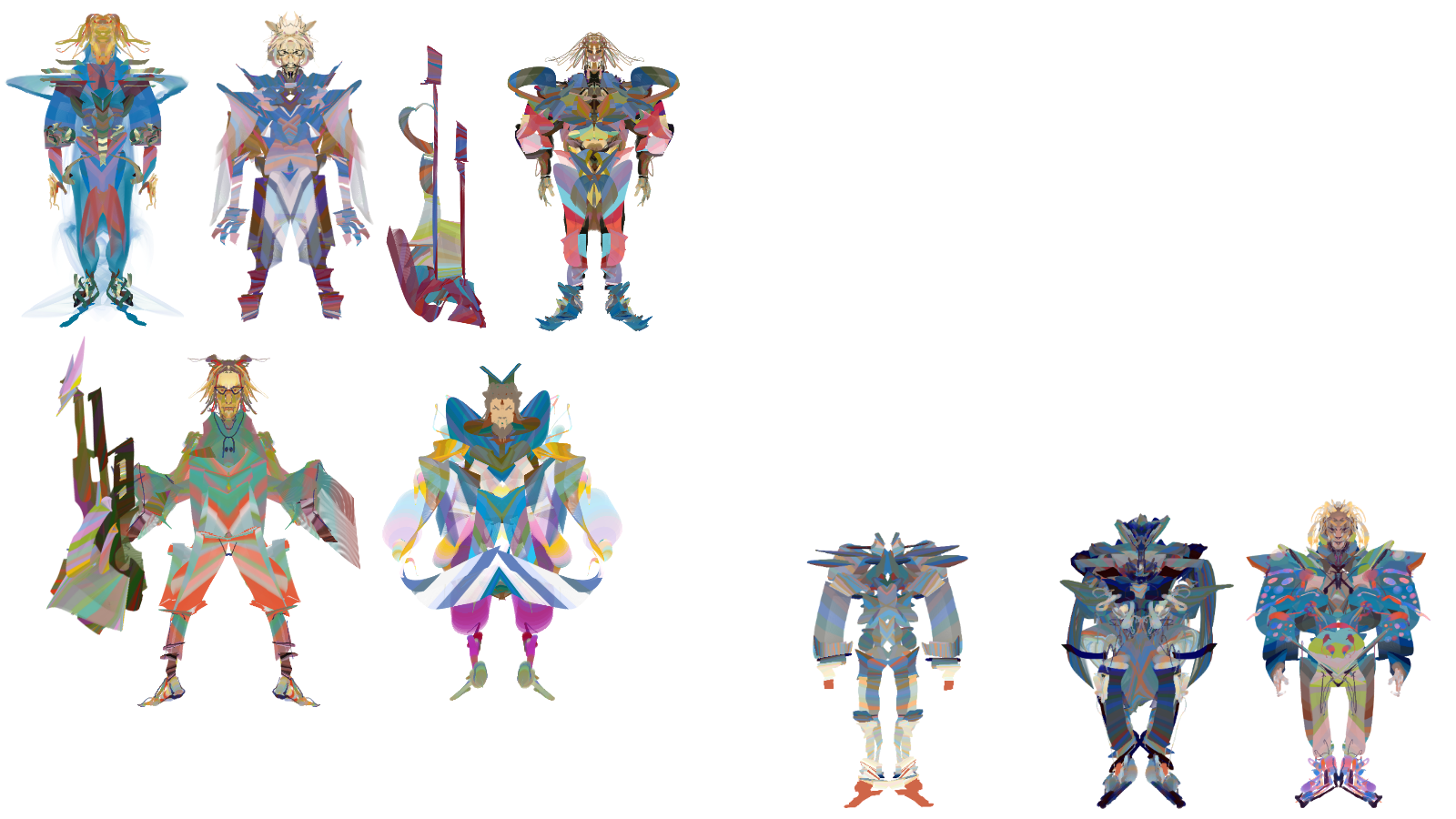
Here are some more sketches and another character made for the same challenge.
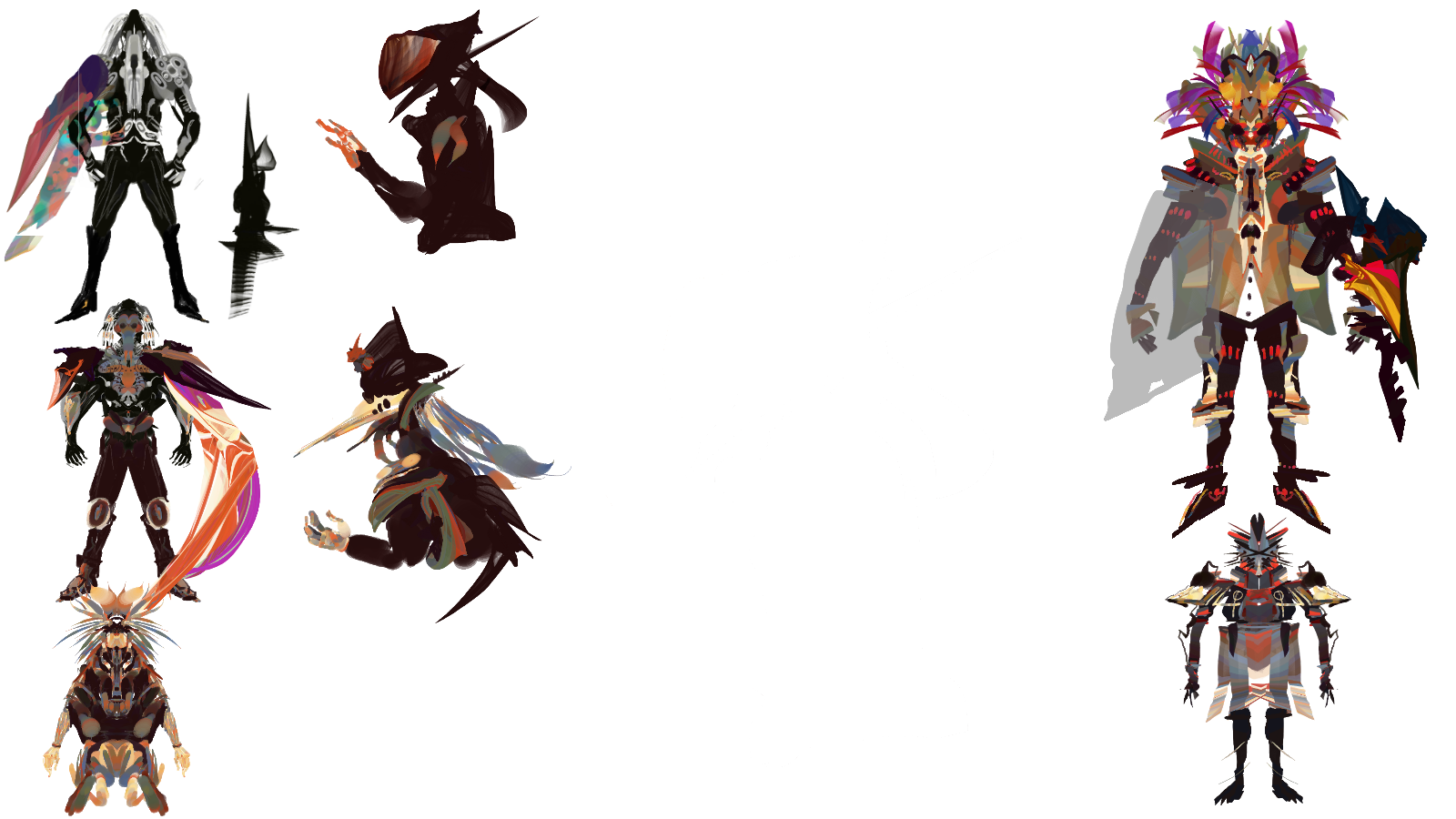
Lastly credit to Feng Zhu and this very informative video:

where I stole the mirror silhouette idea from.

So try this technique out and see what happens.
I Hope you enjoy all this and find it useful!
In the last post I started exploring audio expressions with Corel Painter.

Moving a little further into that territory I wanted to share how to set up Audio Expression using color sets.  Its a pretty simple step that can give you some interesting color effects.

________________________________________

First off you will need Corel Painter 2018 (or 2017).

Open it and open an image that you like.

I’m going to use this painting of the 19th century impressionist painter Claude Monet by the contemporary impressionist painter Alex Kanevsky.

I  think it is fitting and it has interesting colors.


To paint with audio expressions and color sets you will need to do a few things…

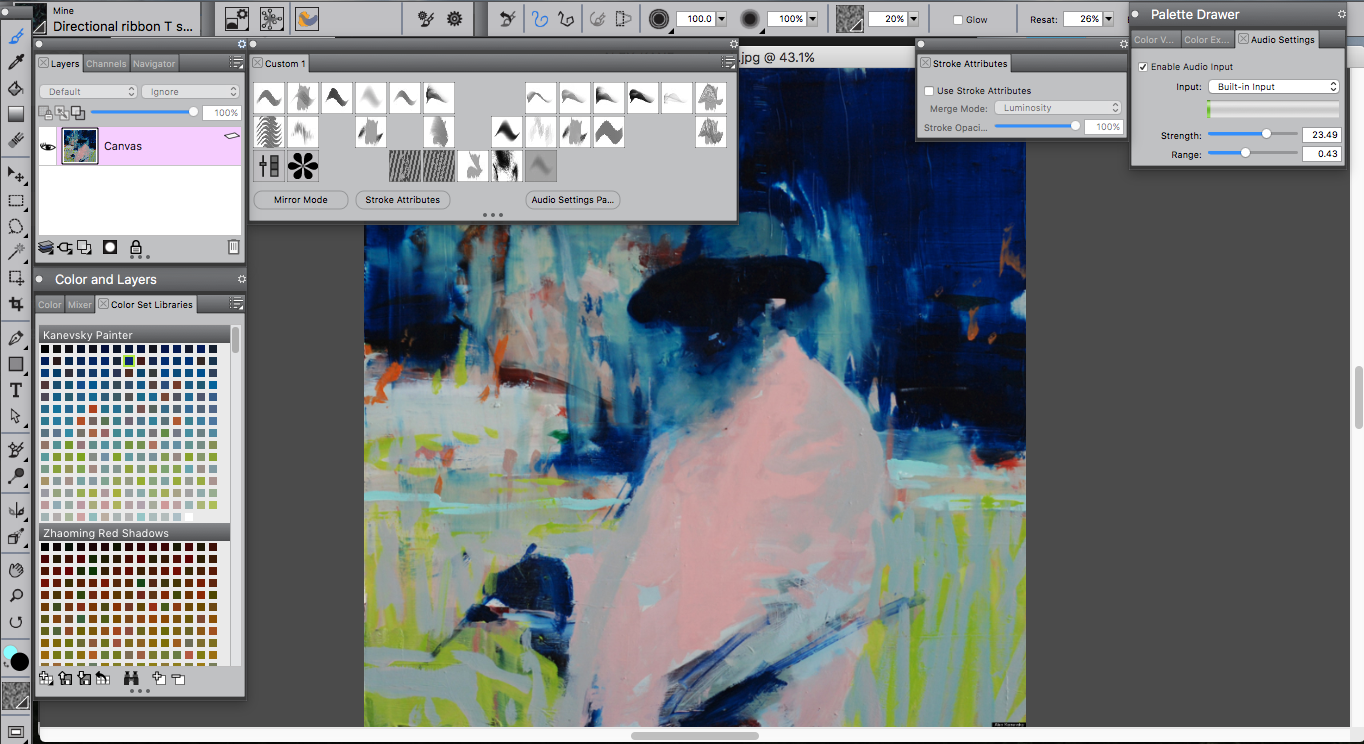
Start by going to the “Colors and Layers” tab.

then click on the “Color Set Libraries” tab

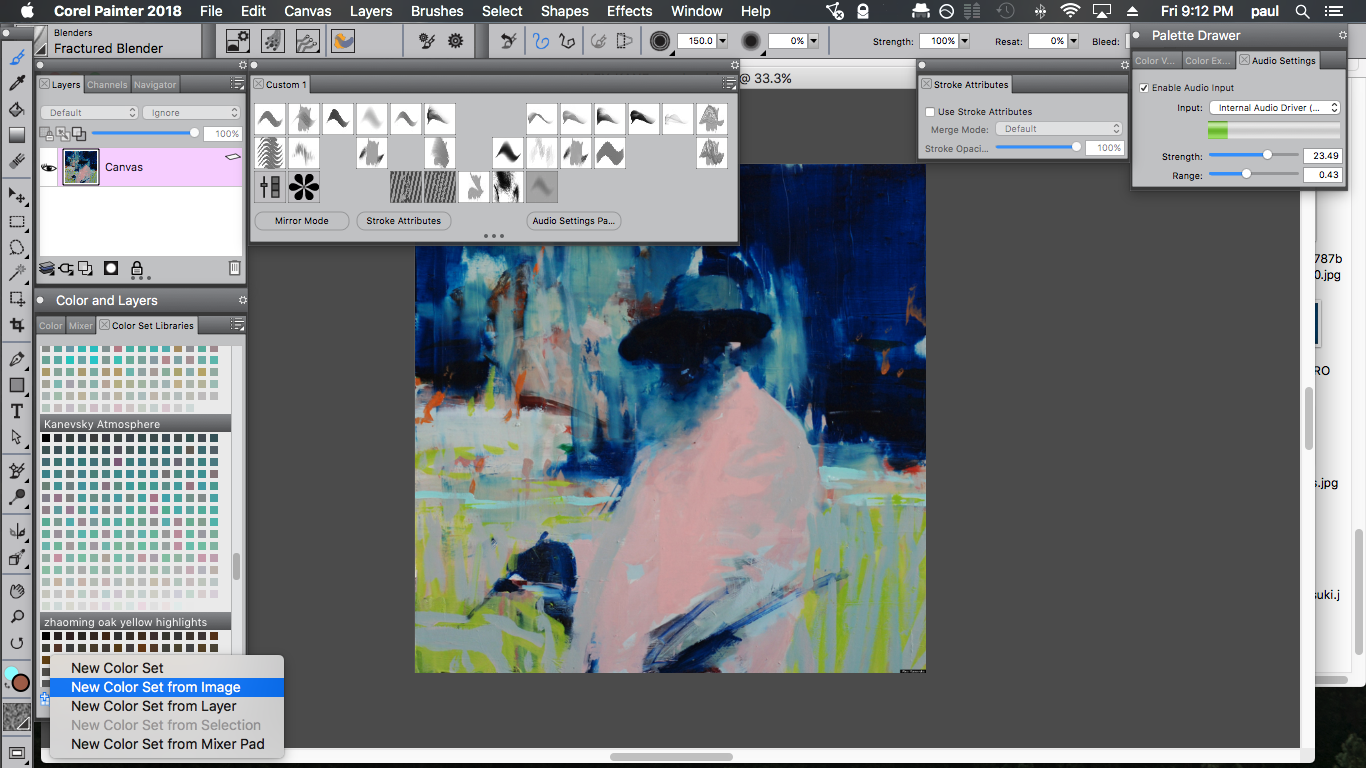
click the icon in the bottom left hand corner and hit “New Color Set”

then “new color set from image”

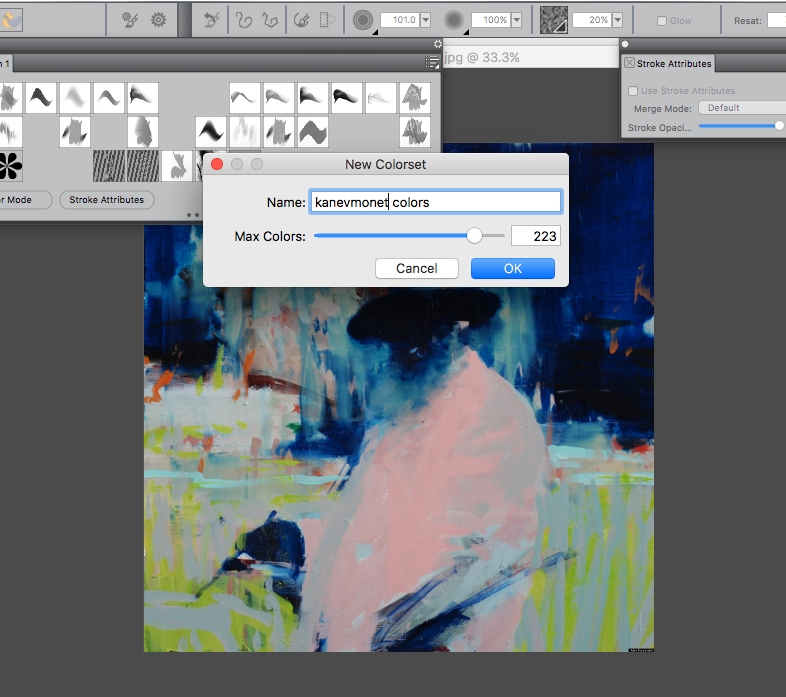
pick a name and number of colors you want in your color set.

I recommend something over 100.

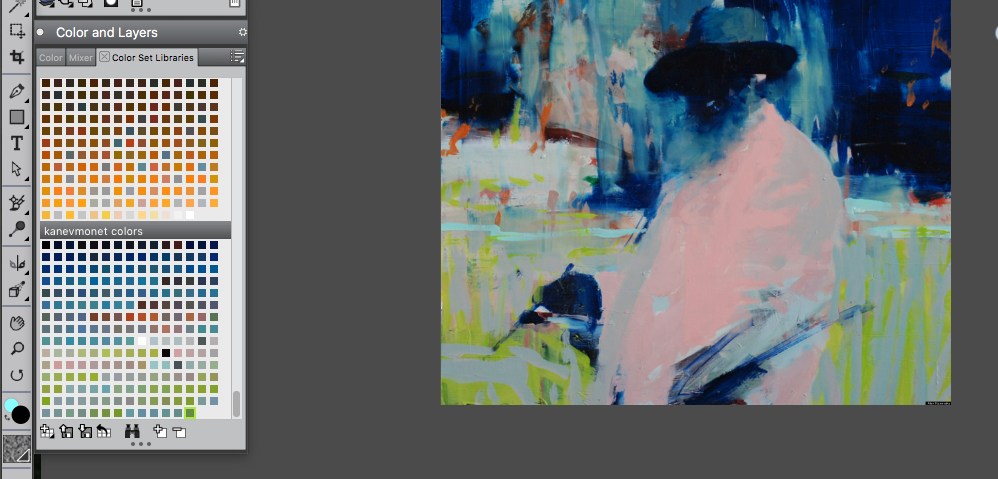
click “ok” and your color set should appear in the color set libraries tab.

click on a color swatch to select the new color set.

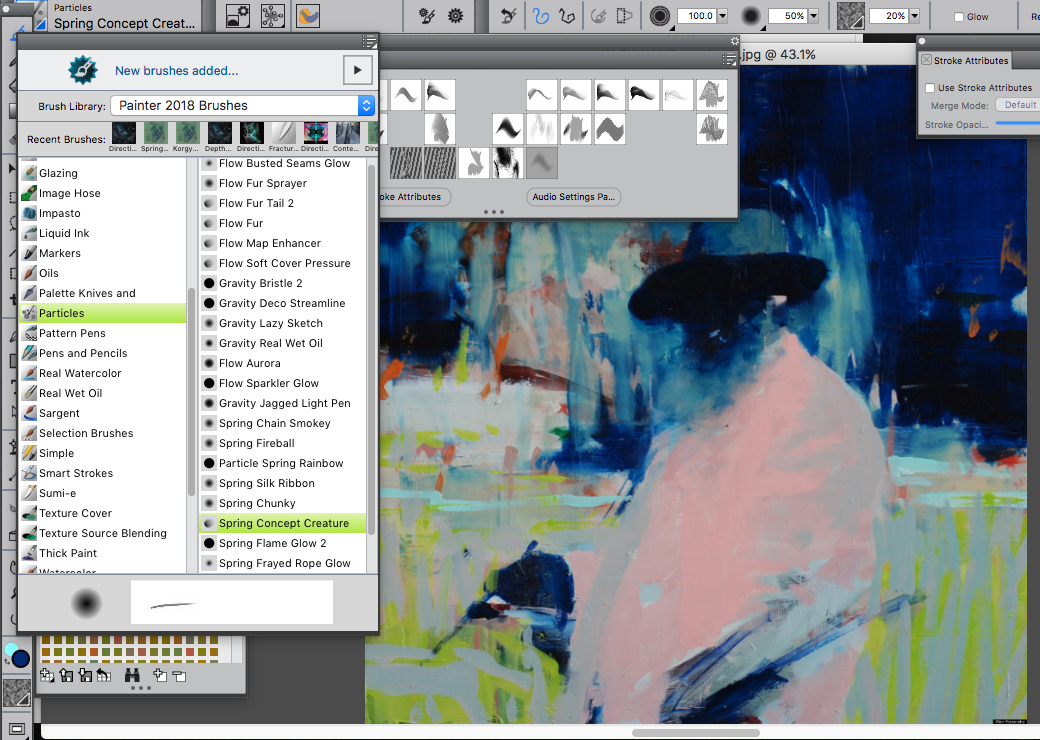
Pick a particle brush from the Brush Selector Panel at the top left:

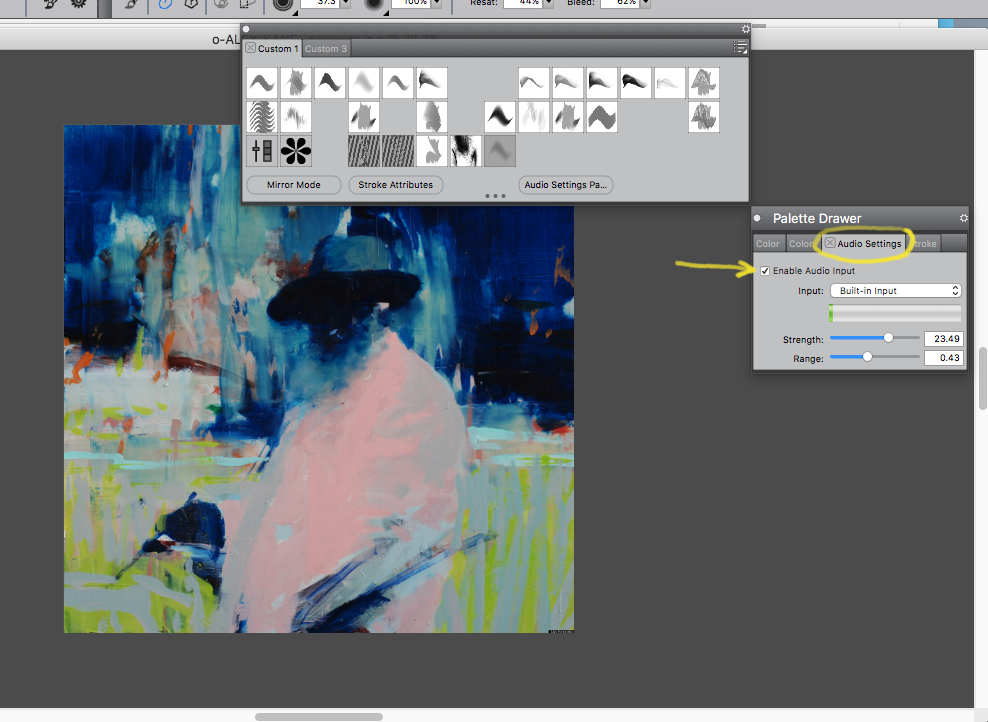
Once you are using a particle brush go to and select Window/Audio Settings Panel

then click “enable audio input”

You may need to mess with the Strength and Range a bit.


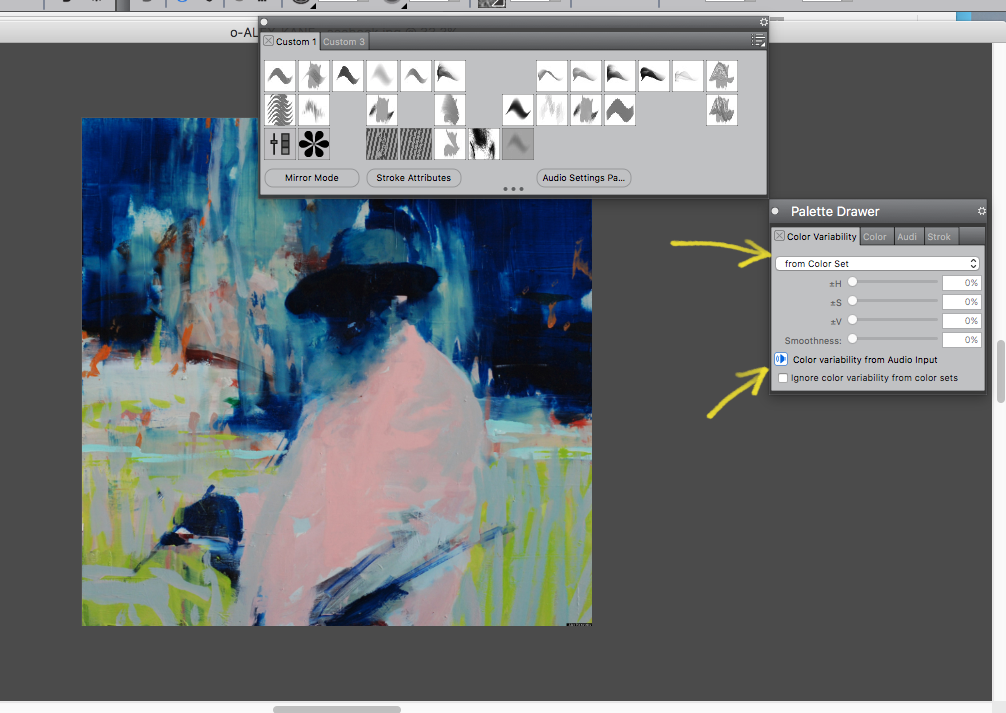
Afterwards go to and select Window/Brush Control Panels/ Color Variability.

In the Color Variability Tab select “from Color Set” and check

“Color variability from Audio Input”.

Now you can play some music from an mp3 and start painting with

Audio Expressions from a color set.

Experiment and see what you can come up with.

Enjoy!