In this post we will combine audio expression and mirror painting in Corel Painter.

It’s pretty simple.

First you set up audio expressions as shown in the last blog post 

Then just click the “mirror painting” button in the corner before you get to painting with the brush tool.

like this:
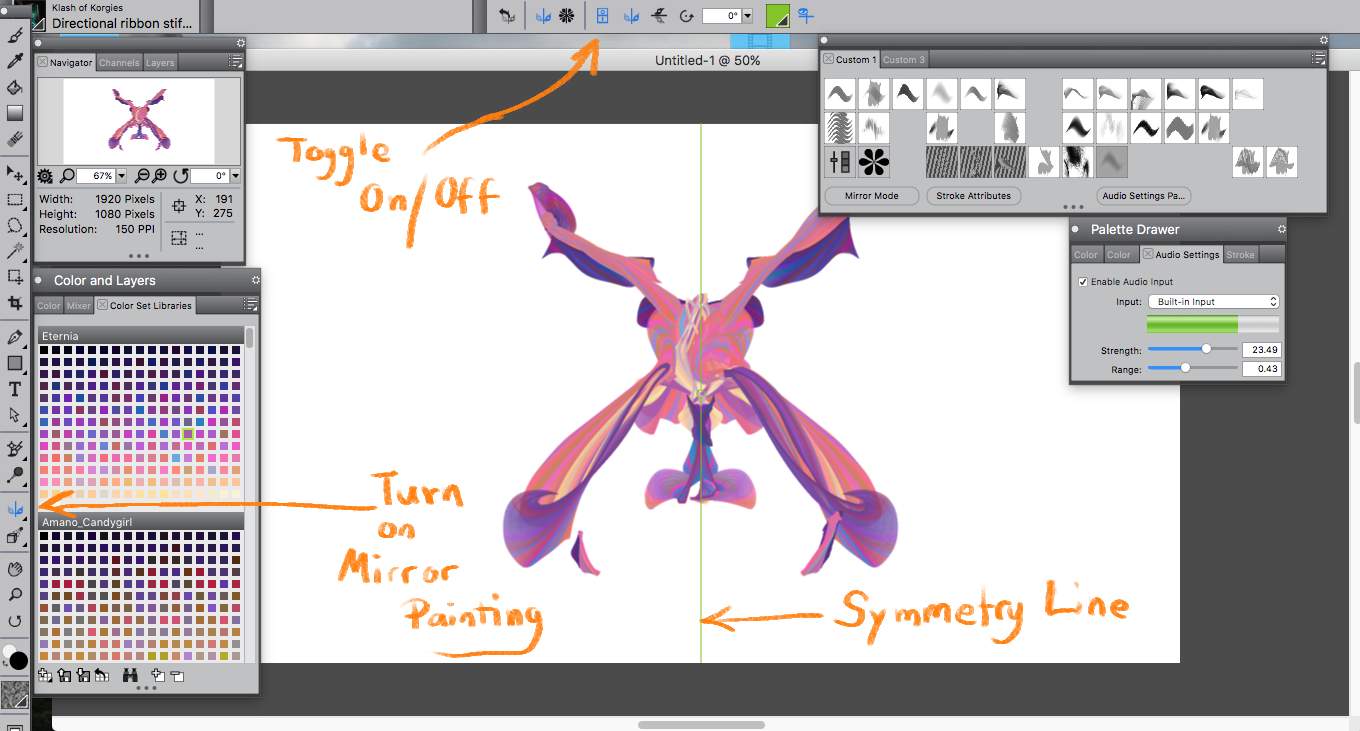
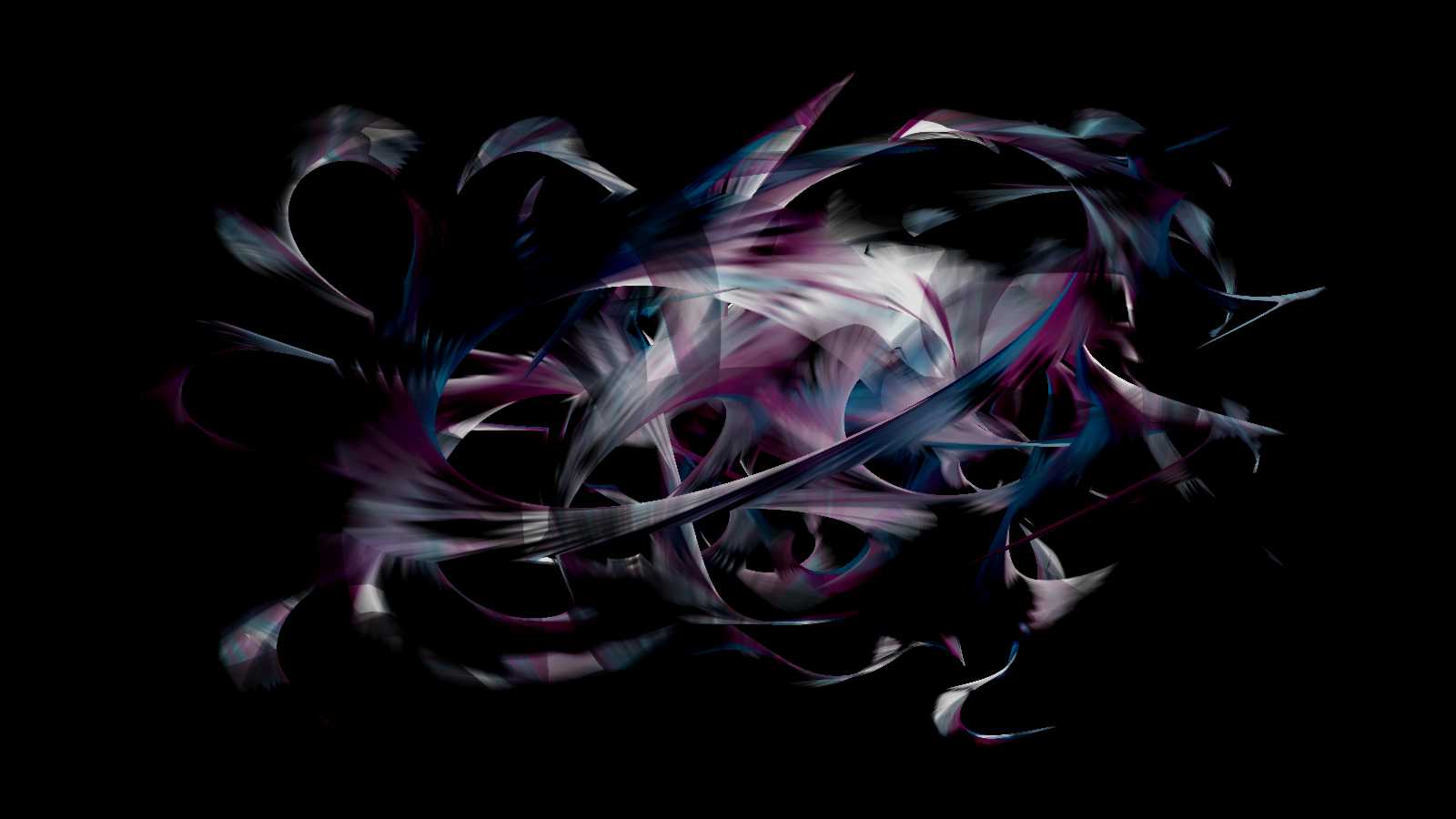
Cross over the symmetry line while you paint to automatically create interesting and beautiful shapes.

Play around and let the brush do some of the work for you.

I used this technique in the last 2 Artstation character design challenges and I was pretty happy with the results.  It enables you to create designs very quickly without sapping all your creative energy.

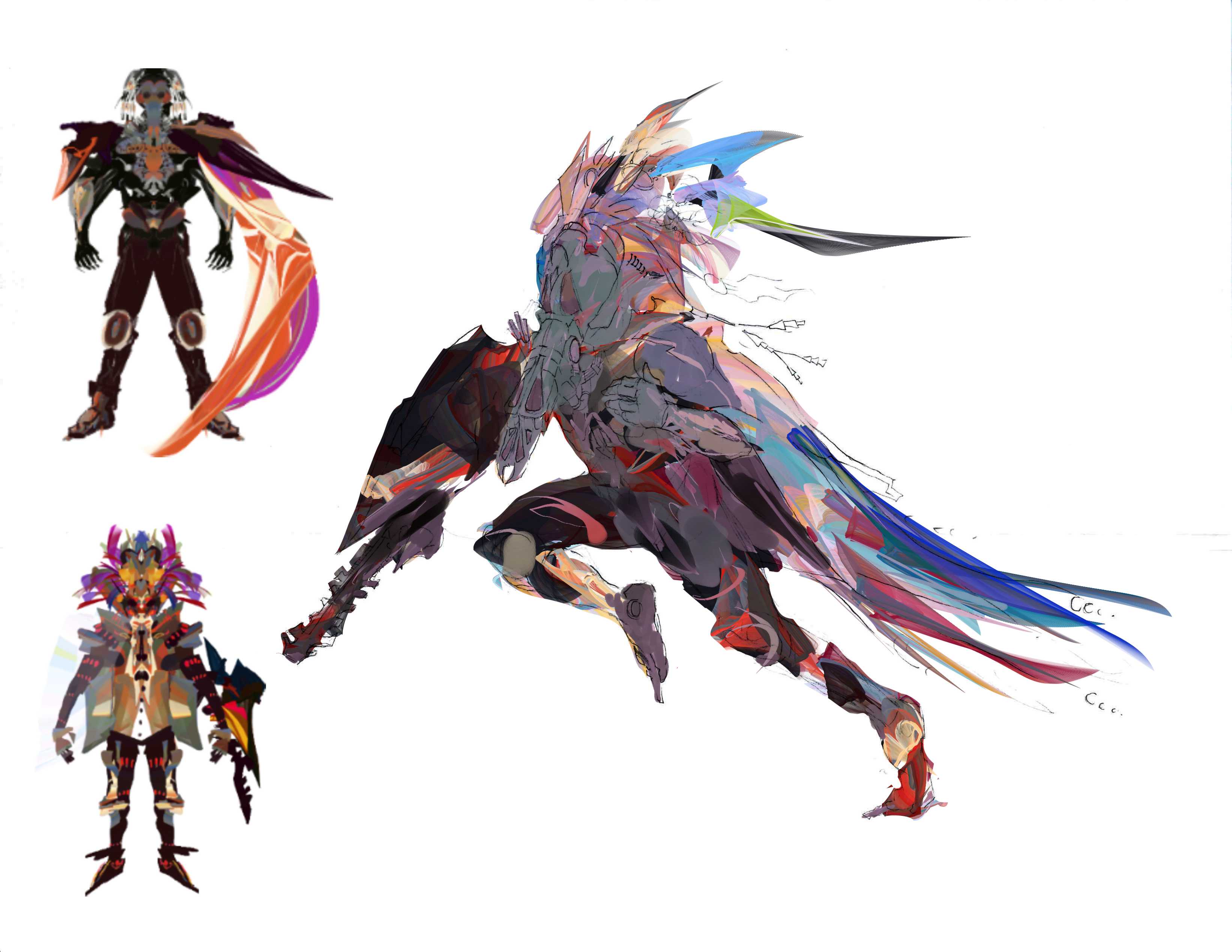
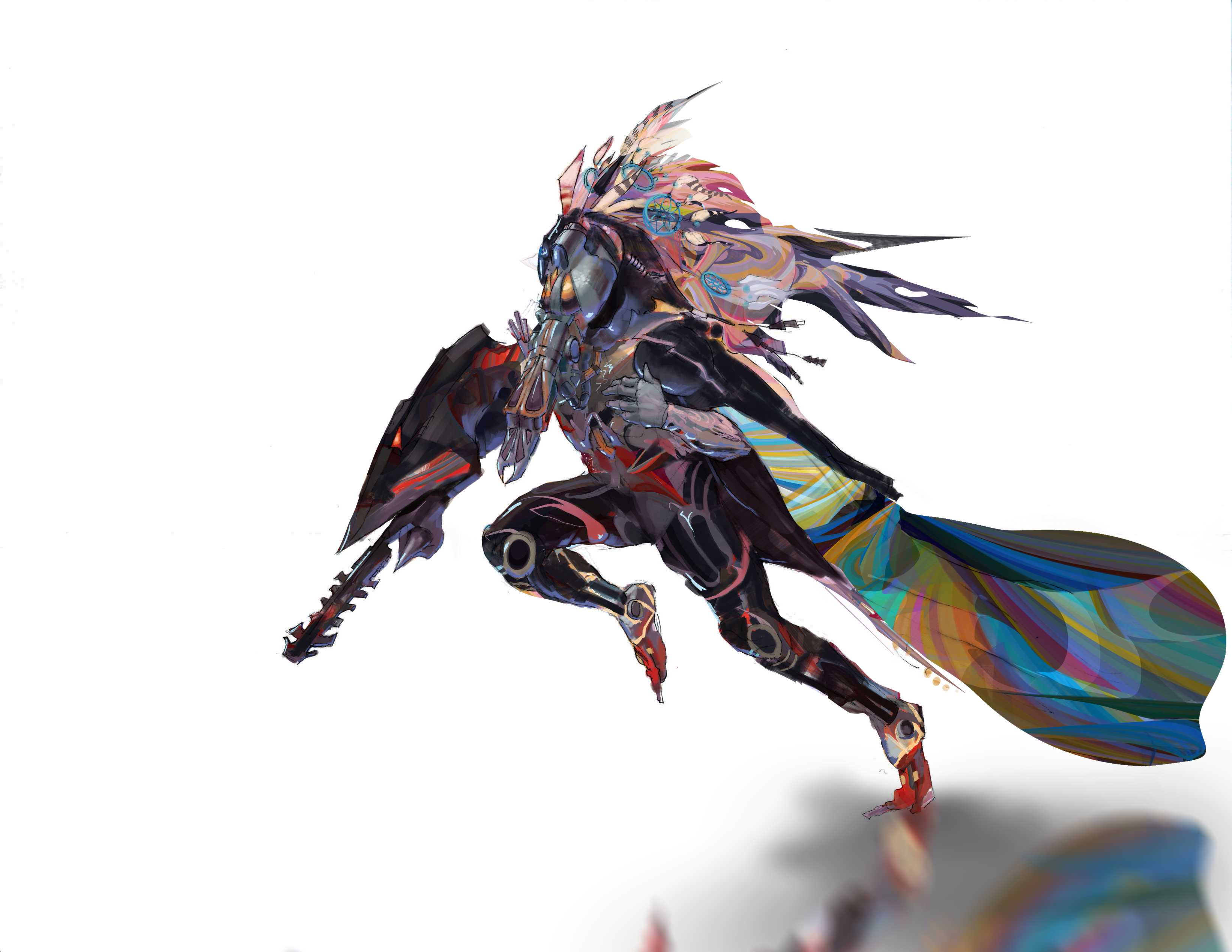
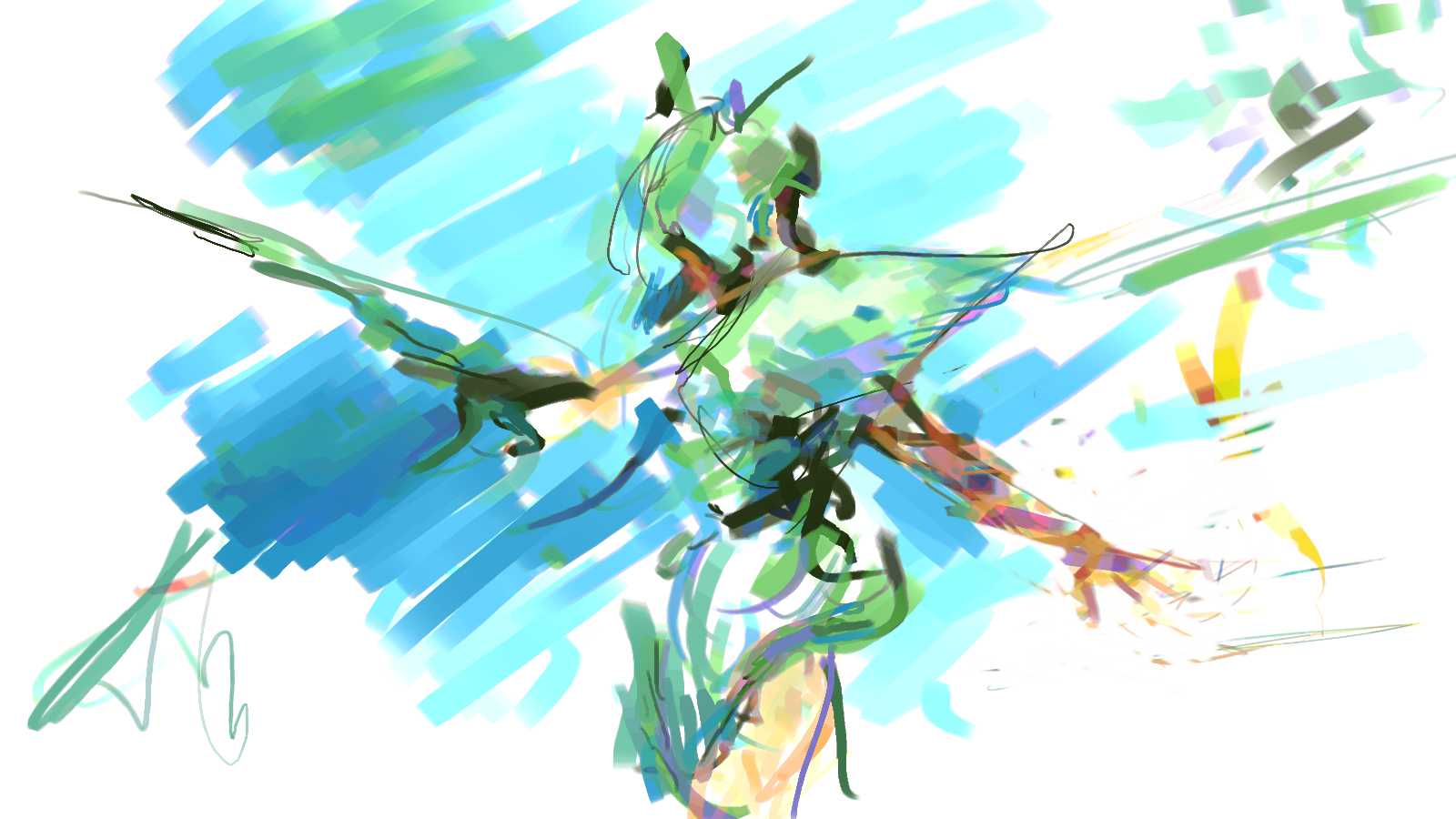
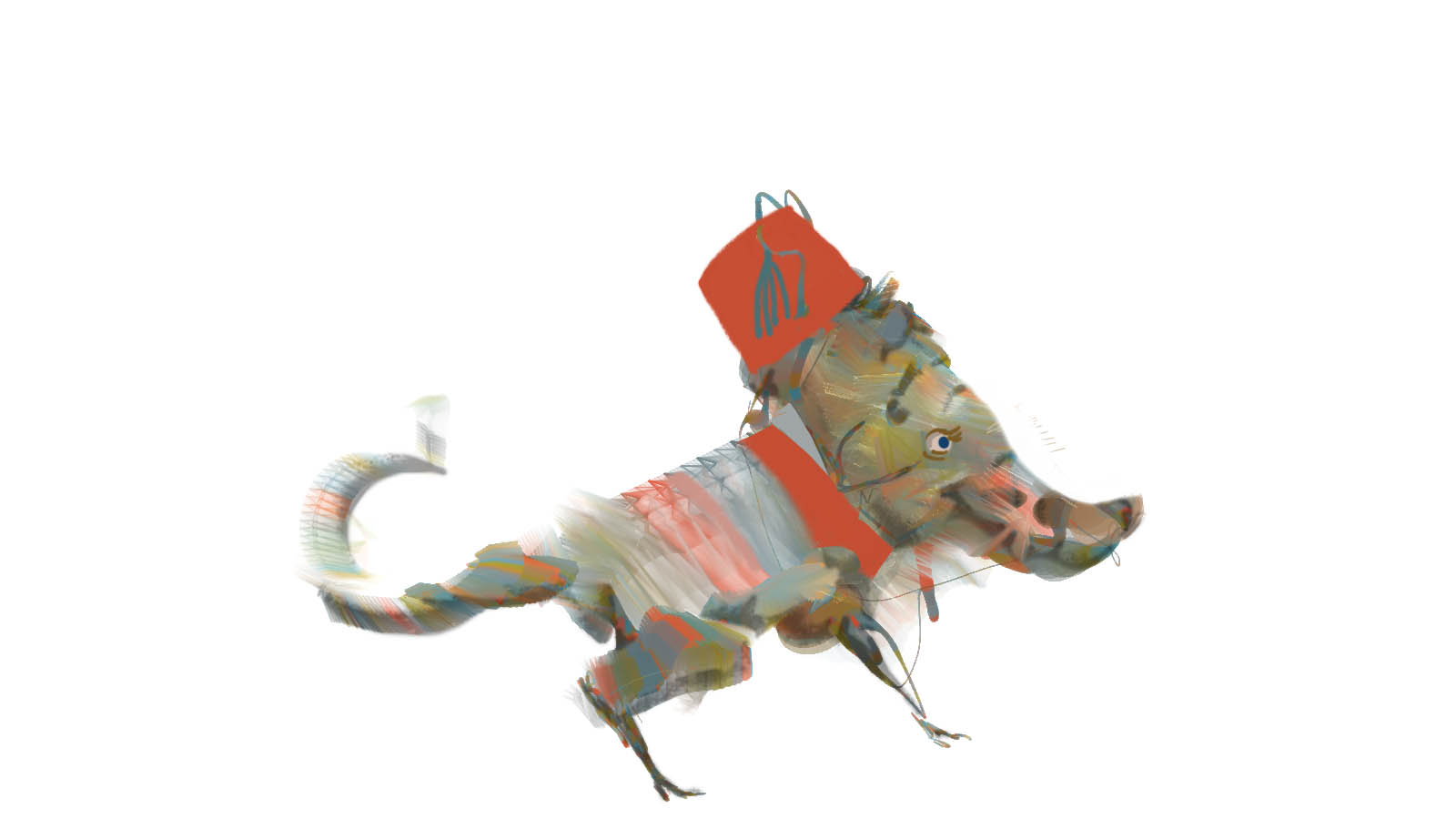
I came up with one of my favorite characters this way:

The Space Musician!
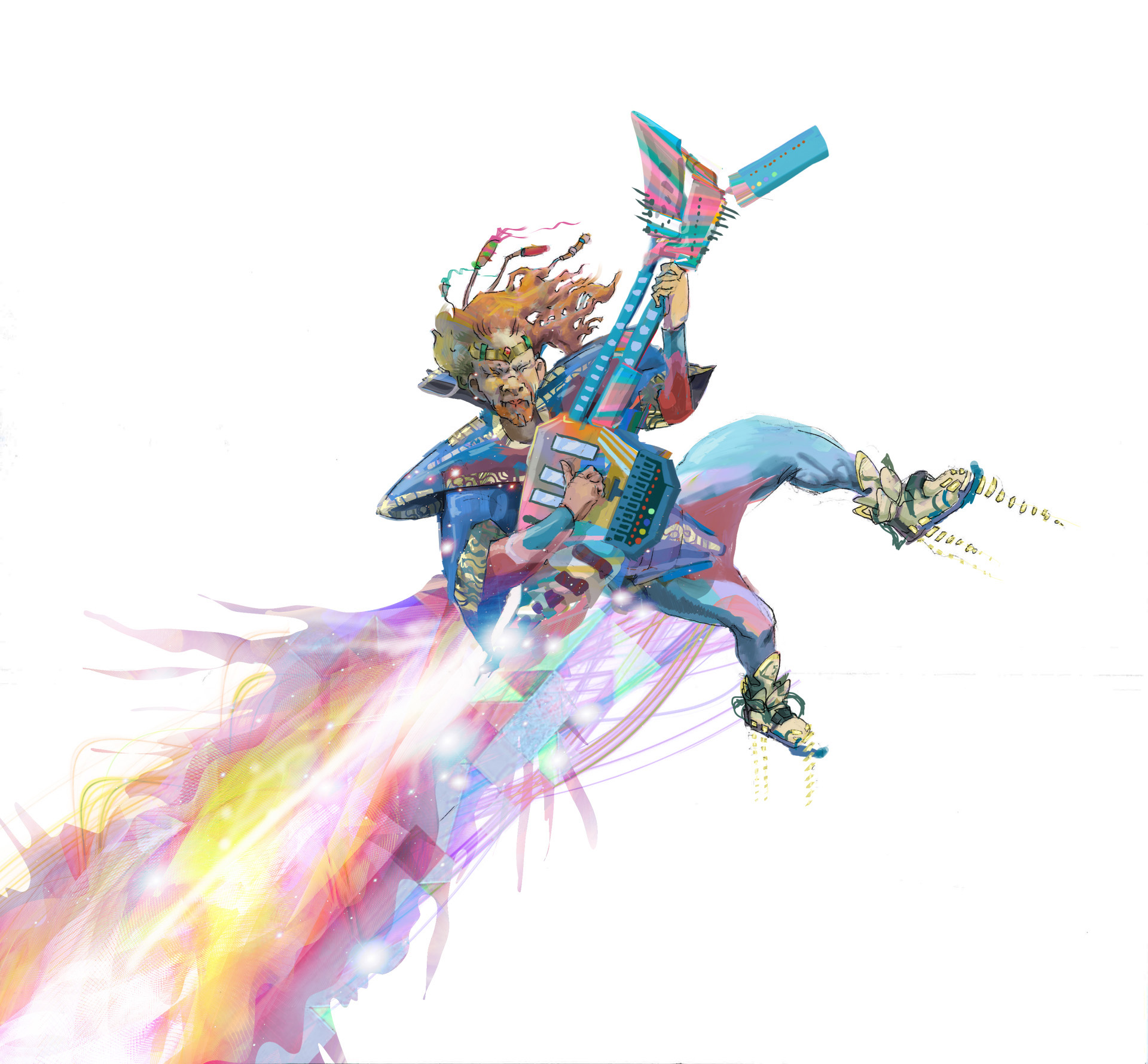
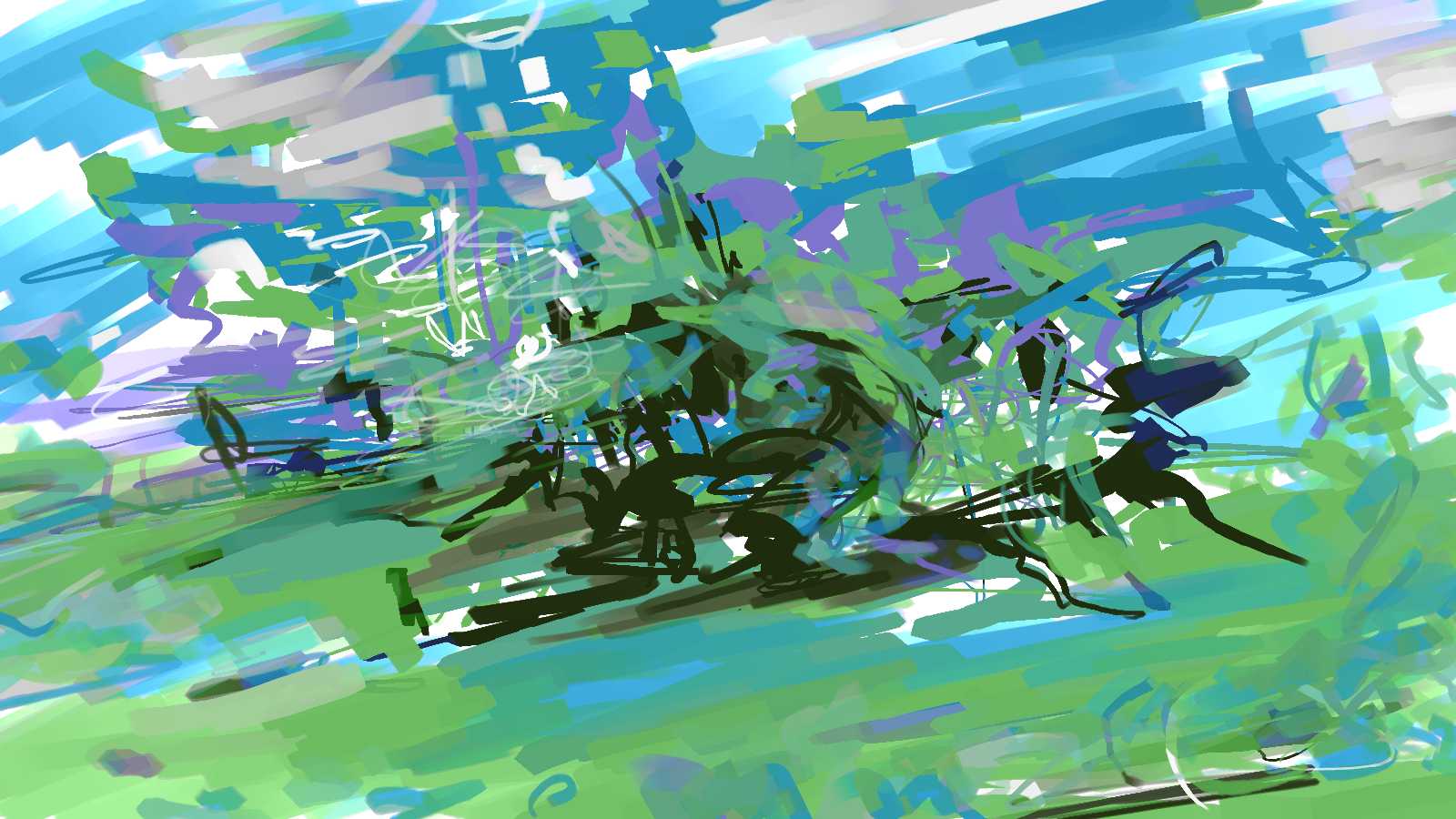
I had a vague idea of this character in my head, so I started scribbling with symmetry on.  I made multiple sketches but of course the first one was the one I liked best.
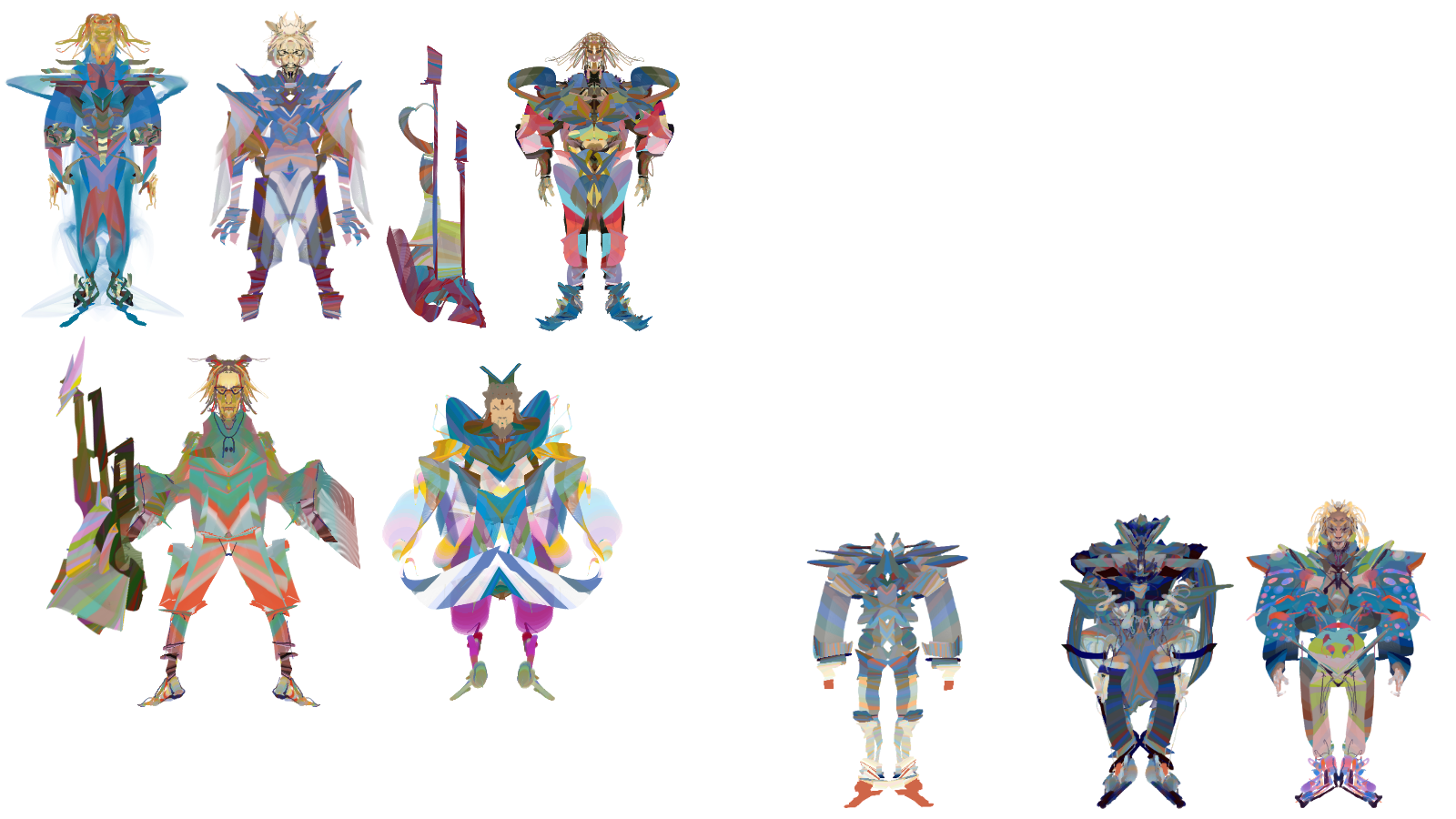
I used the sketch as a reference to base a line drawing and my colors off of.
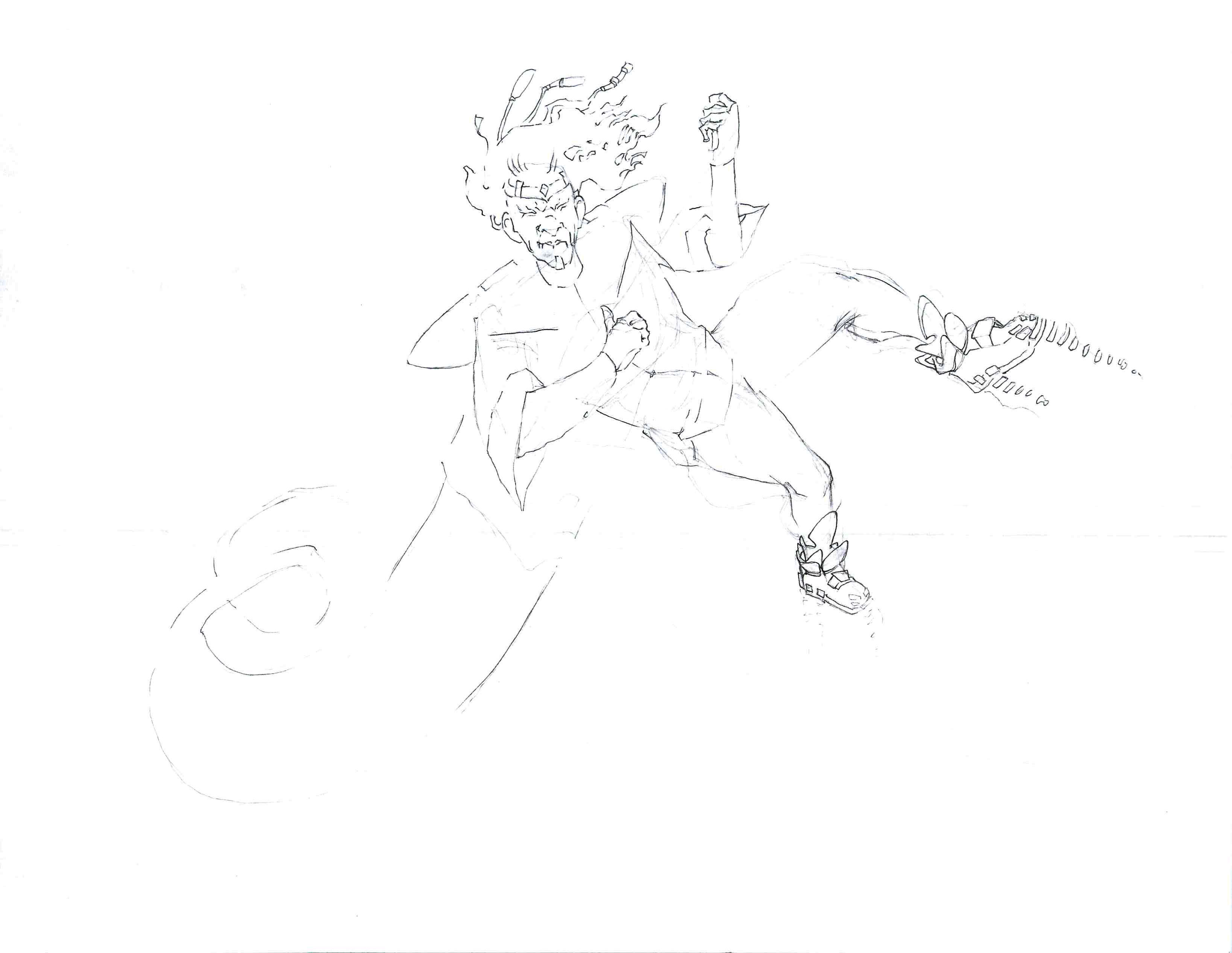
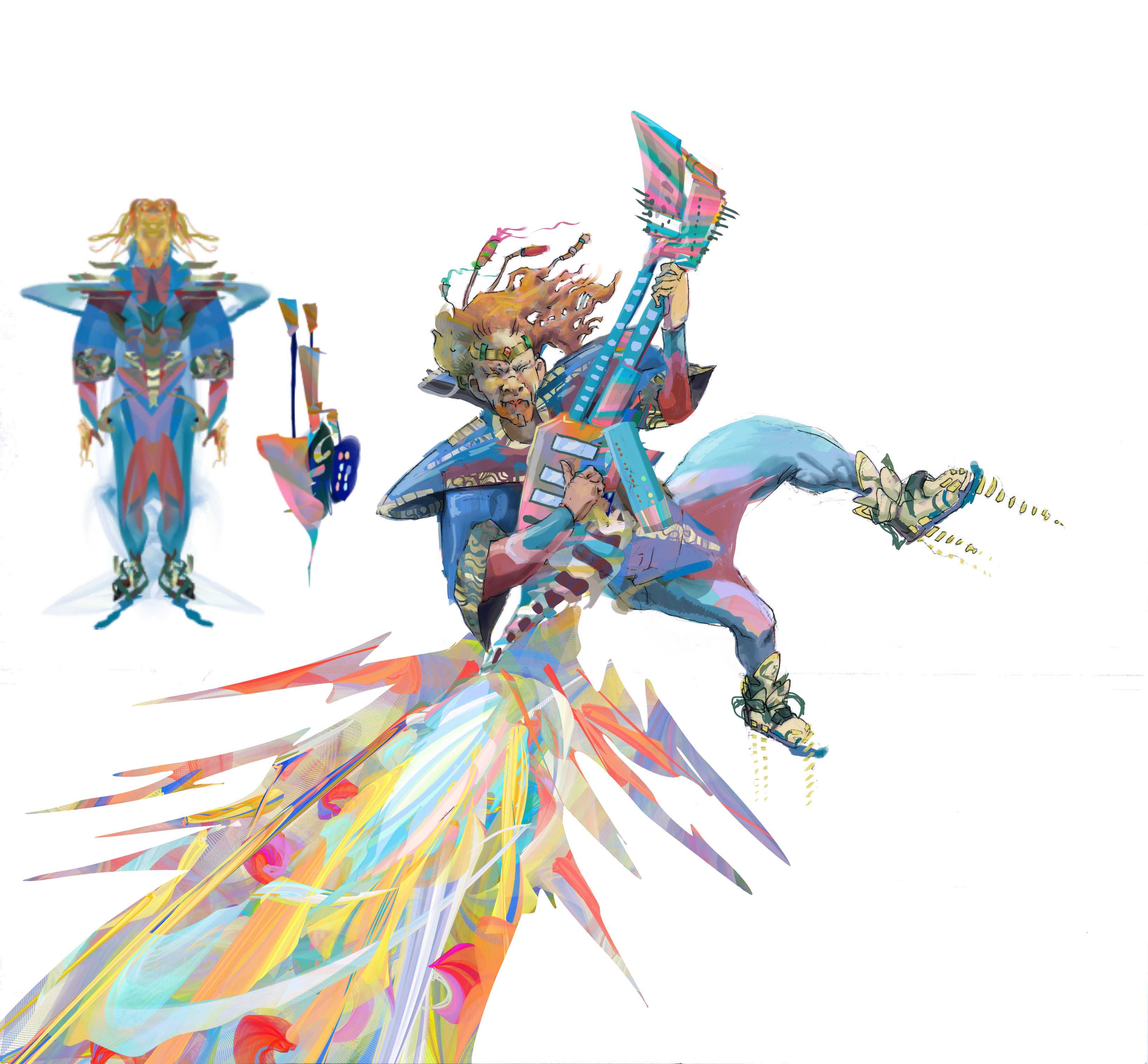
After that, it was just a lot of time rendering and detailing.

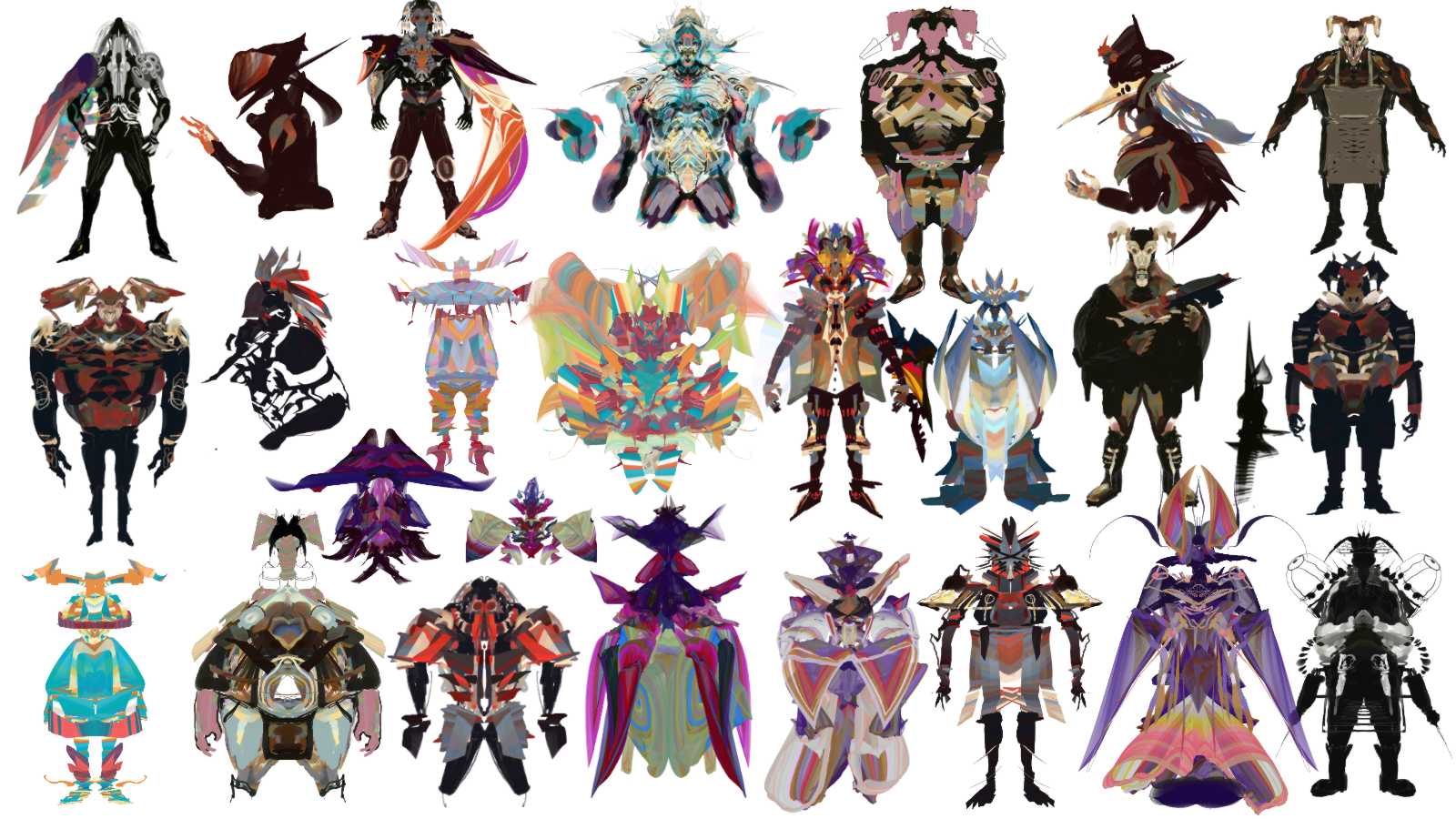
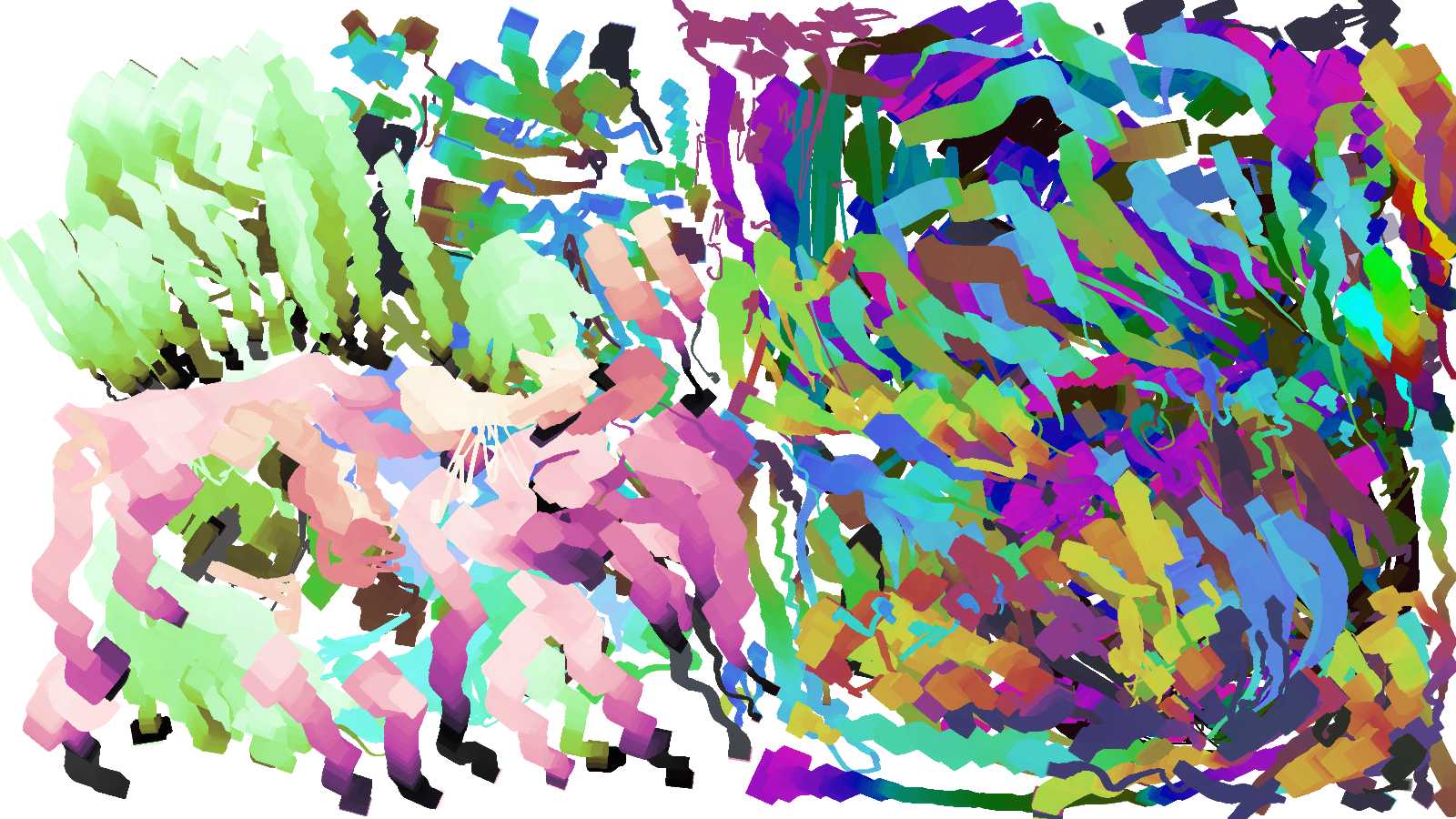
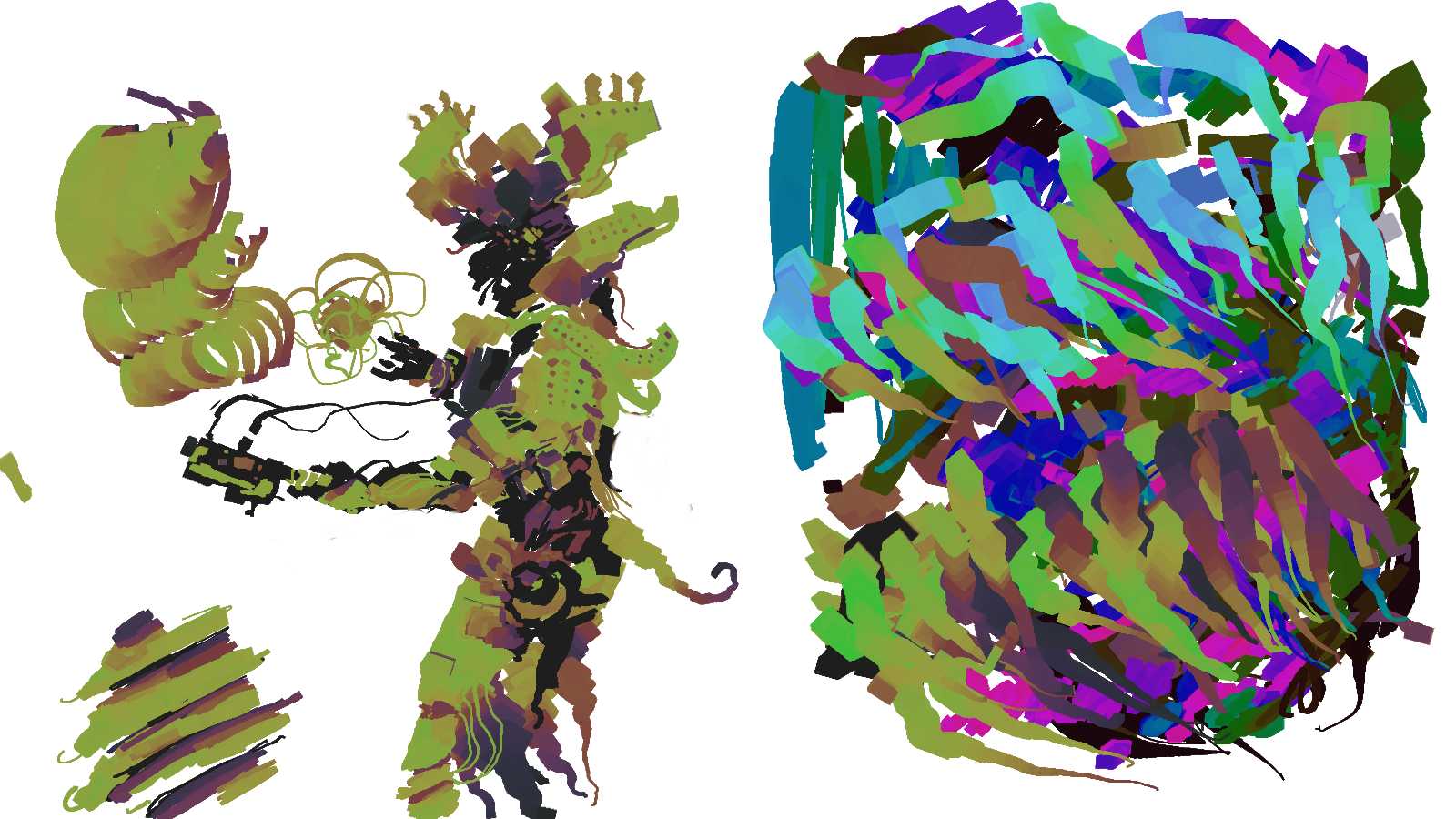
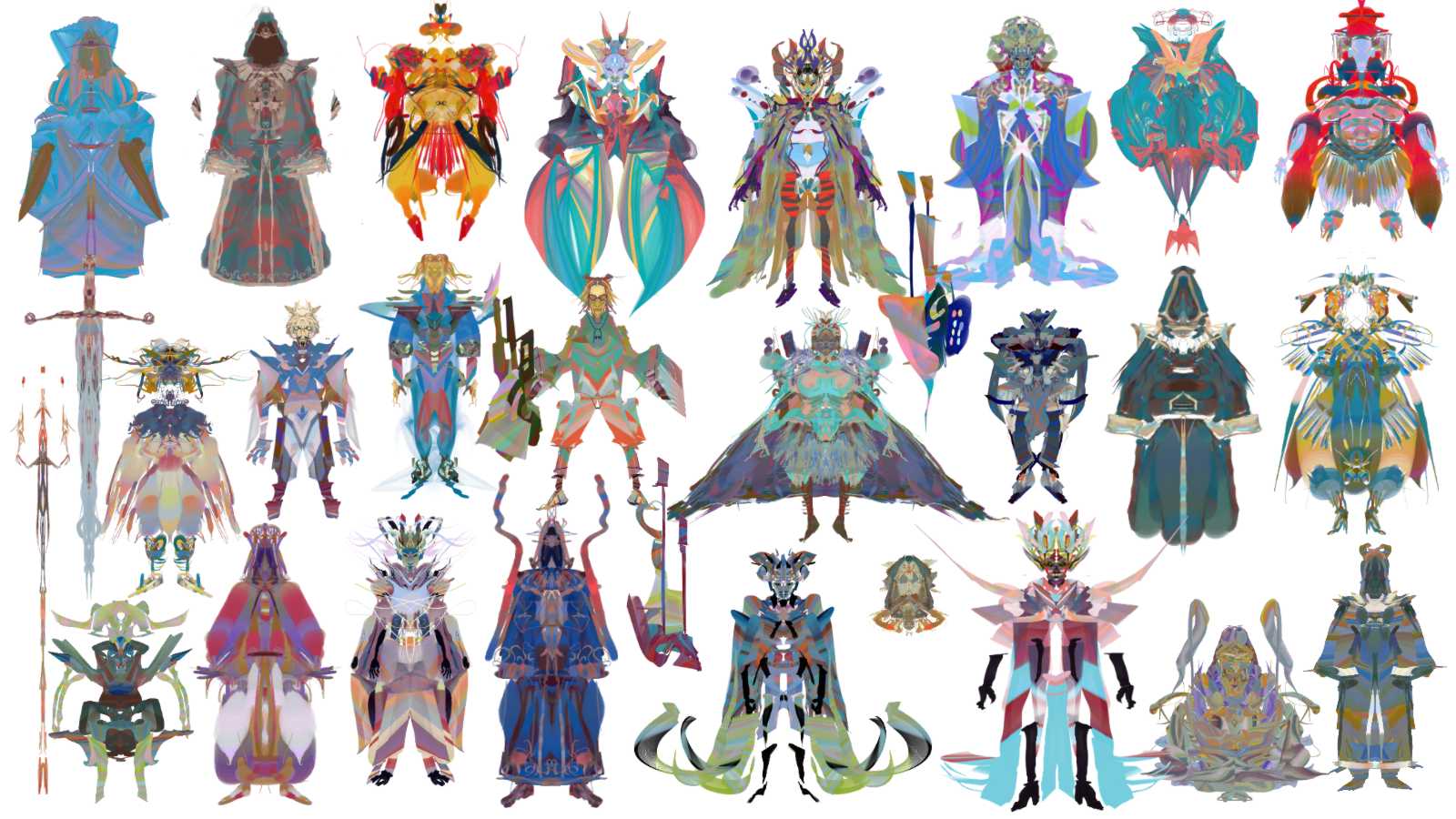
Here are some more sketches and another character made for the same challenge.
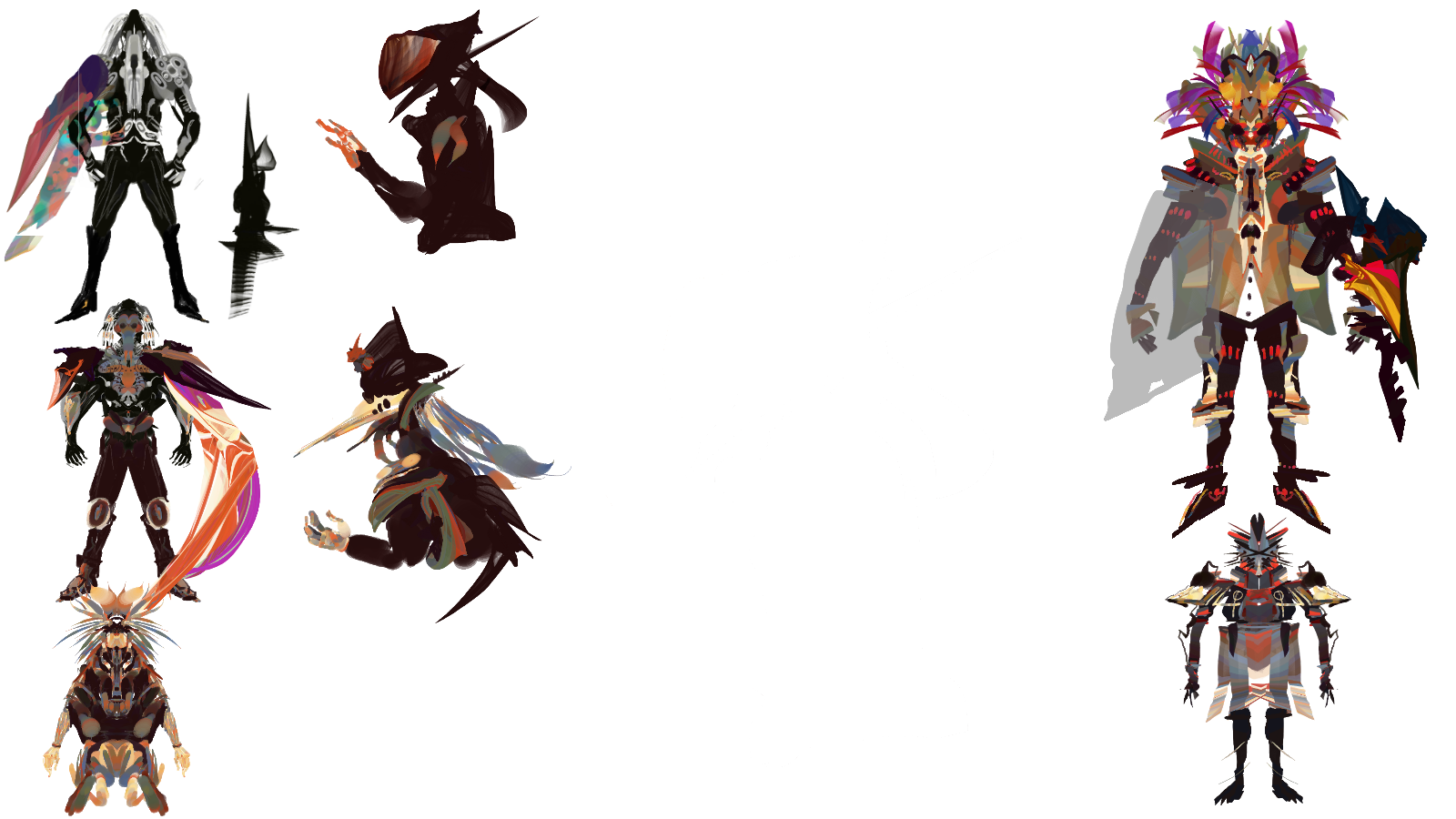
Lastly credit to Feng Zhu and this very informative video:

where I stole the mirror silhouette idea from.

So try this technique out and see what happens.
I Hope you enjoy all this and find it useful!
In the last post I started exploring audio expressions with Corel Painter.

Moving a little further into that territory I wanted to share how to set up Audio Expression using color sets.  Its a pretty simple step that can give you some interesting color effects.

________________________________________

First off you will need Corel Painter 2018 (or 2017).

Open it and open an image that you like.

I’m going to use this painting of the 19th century impressionist painter Claude Monet by the contemporary impressionist painter Alex Kanevsky.

I  think it is fitting and it has interesting colors.


To paint with audio expressions and color sets you will need to do a few things…

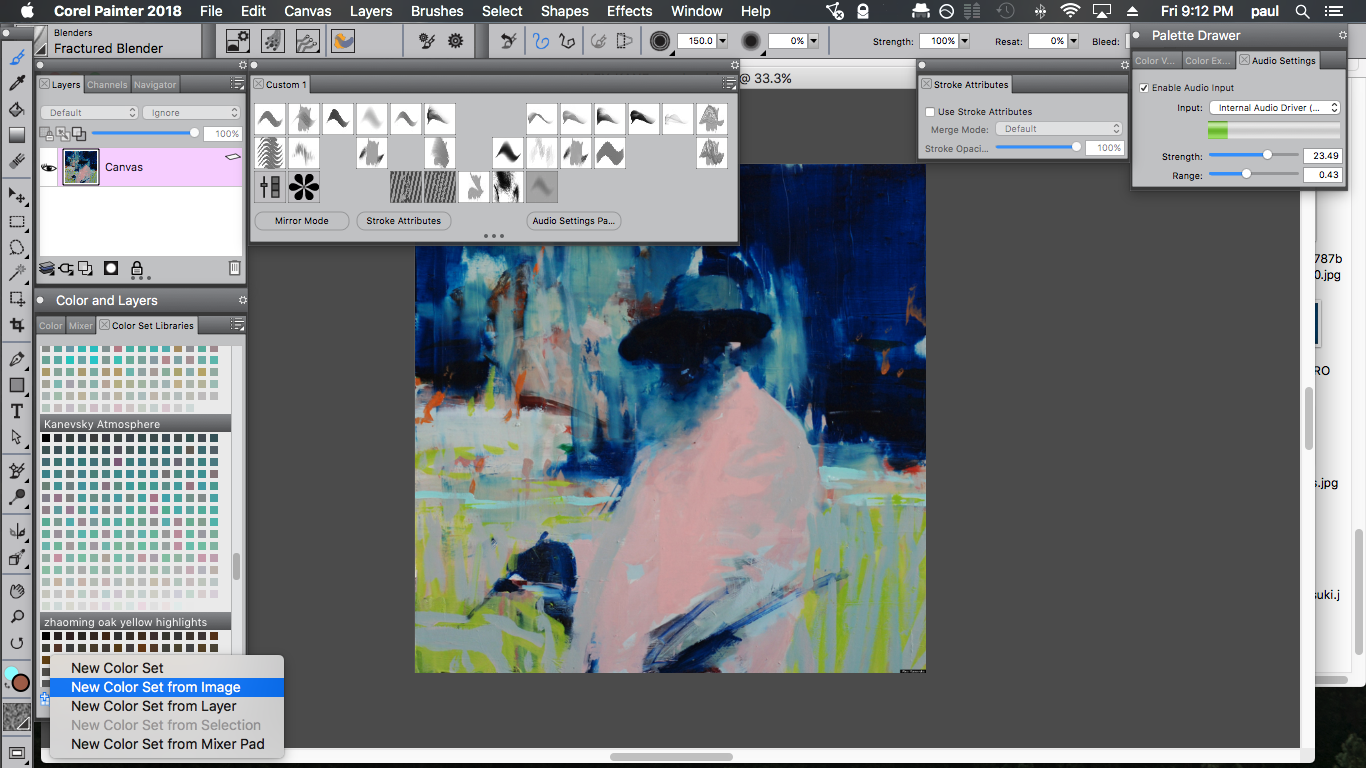
Start by going to the “Colors and Layers” tab.

then click on the “Color Set Libraries” tab

click the icon in the bottom left hand corner and hit “New Color Set”

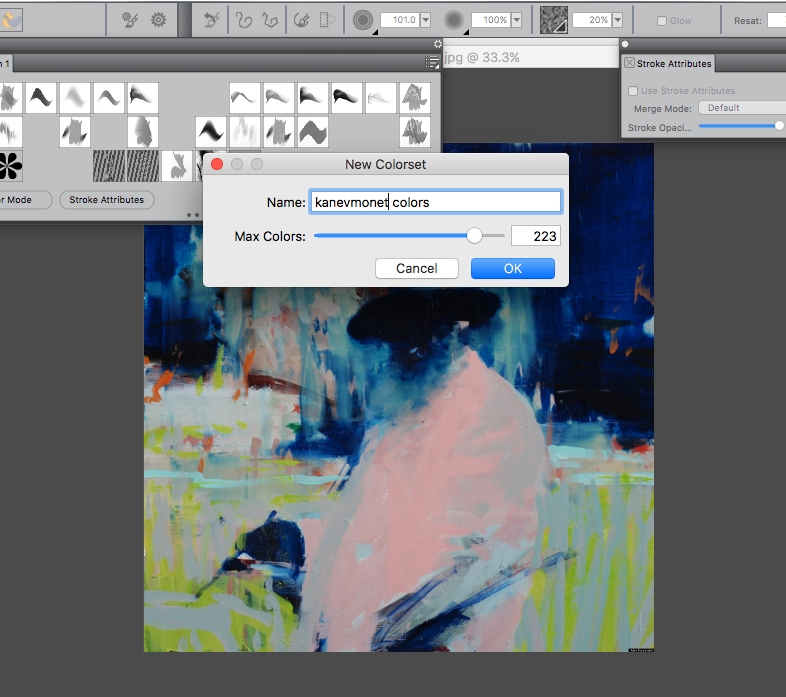
then “new color set from image”

pick a name and number of colors you want in your color set.

I recommend something over 100.

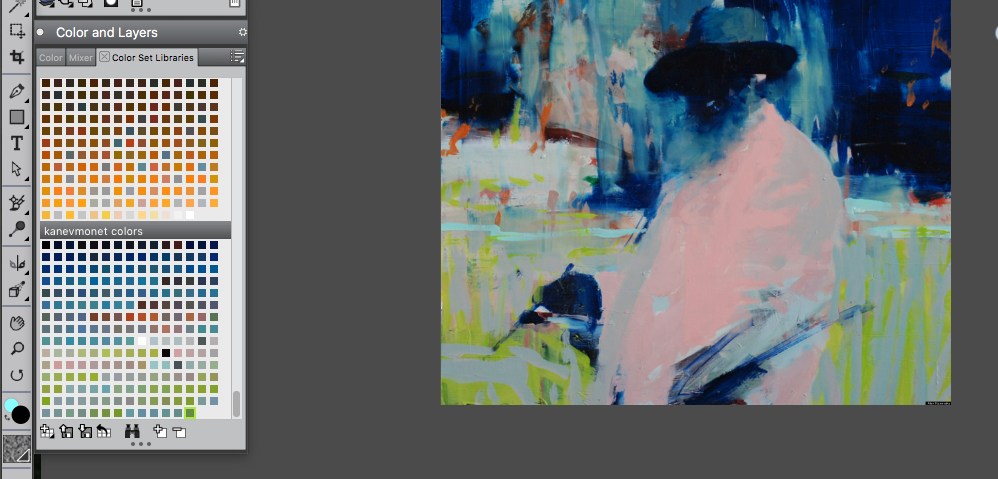
click “ok” and your color set should appear in the color set libraries tab.

click on a color swatch to select the new color set.

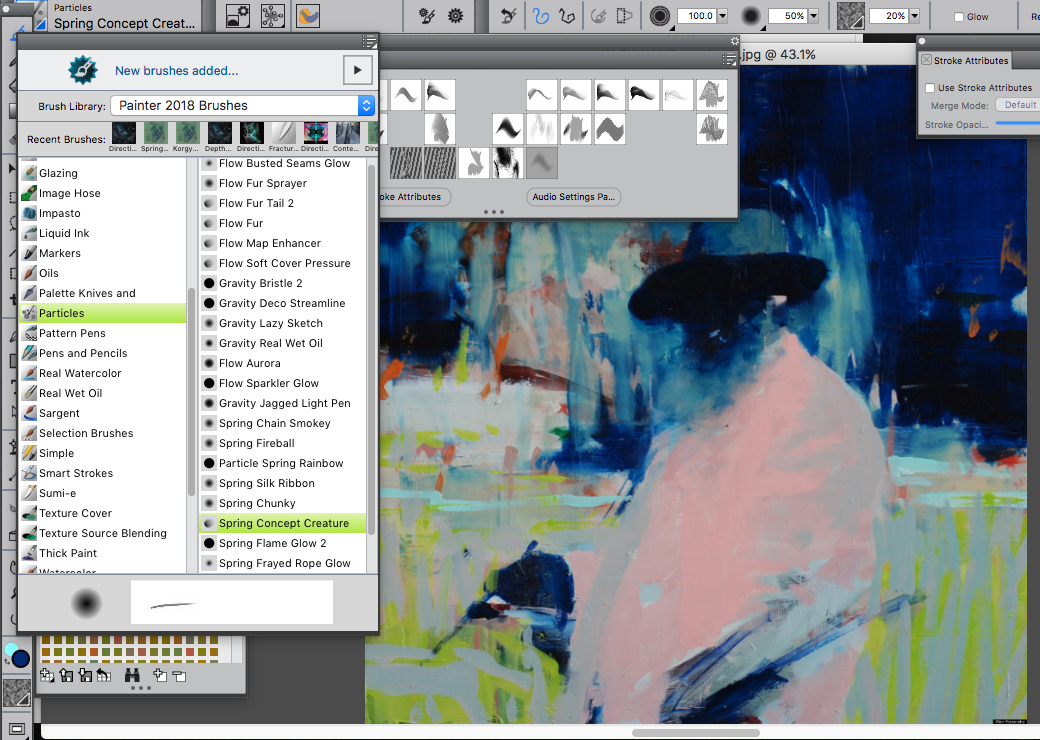
Pick a particle brush from the Brush Selector Panel at the top left:

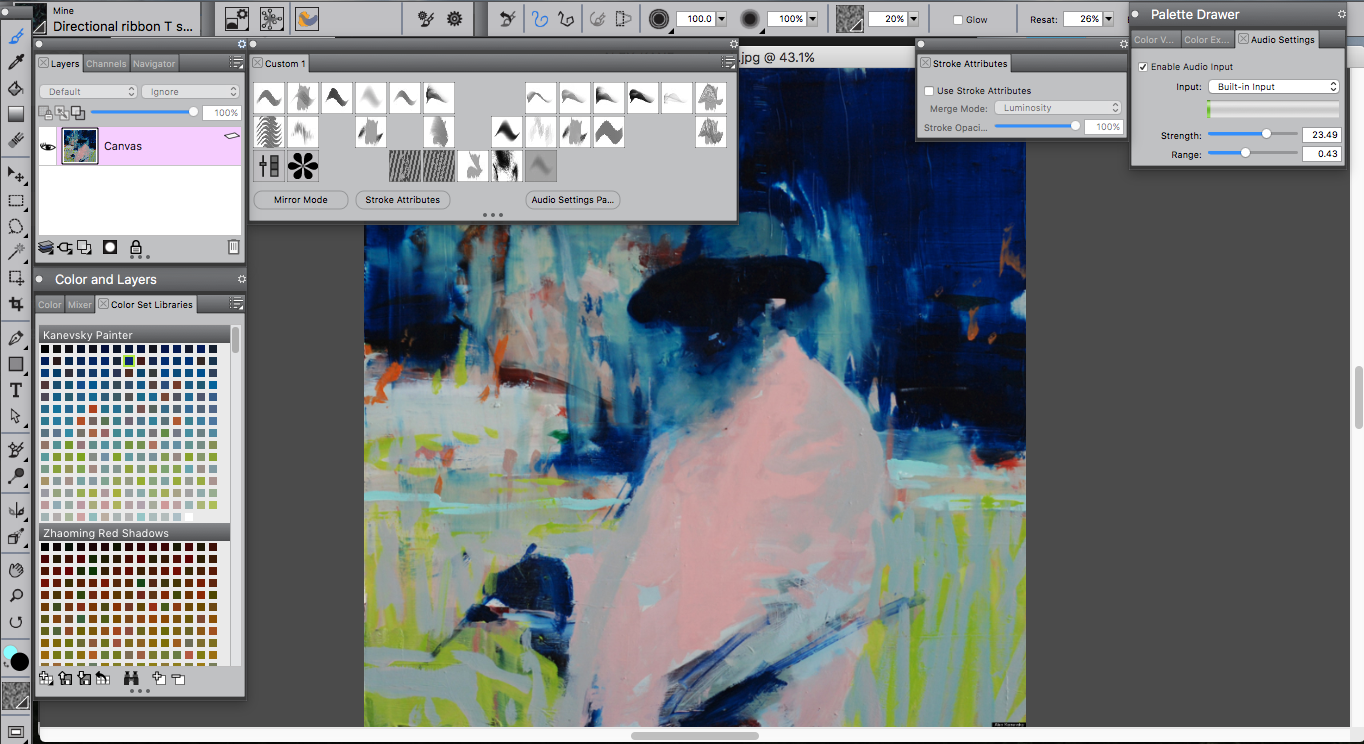
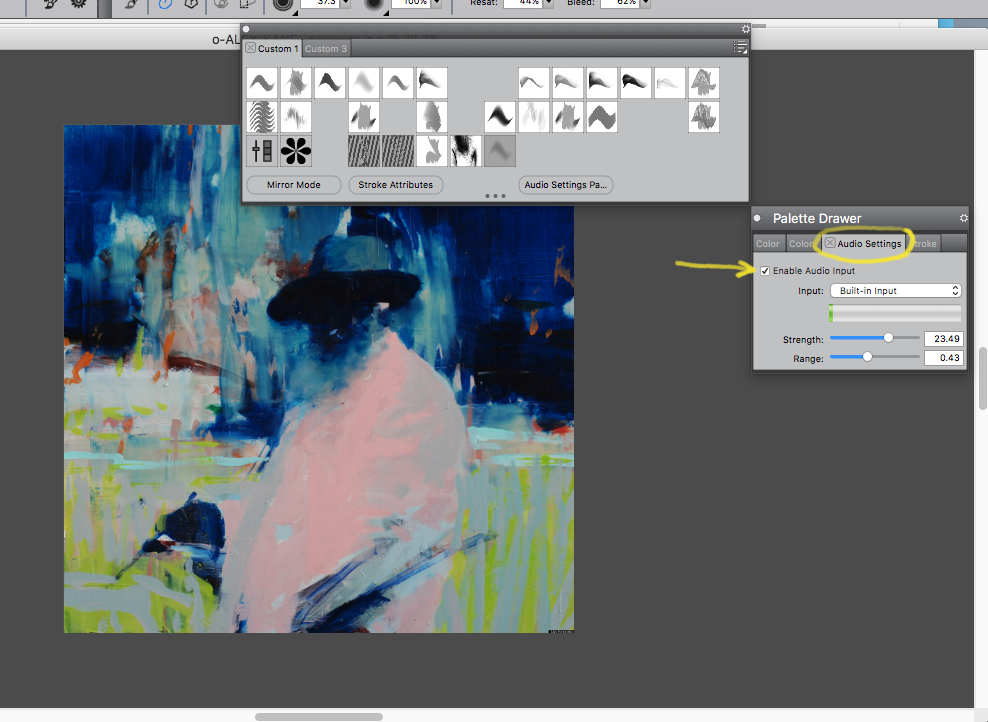
Once you are using a particle brush go to and select Window/Audio Settings Panel

then click “enable audio input”

You may need to mess with the Strength and Range a bit.


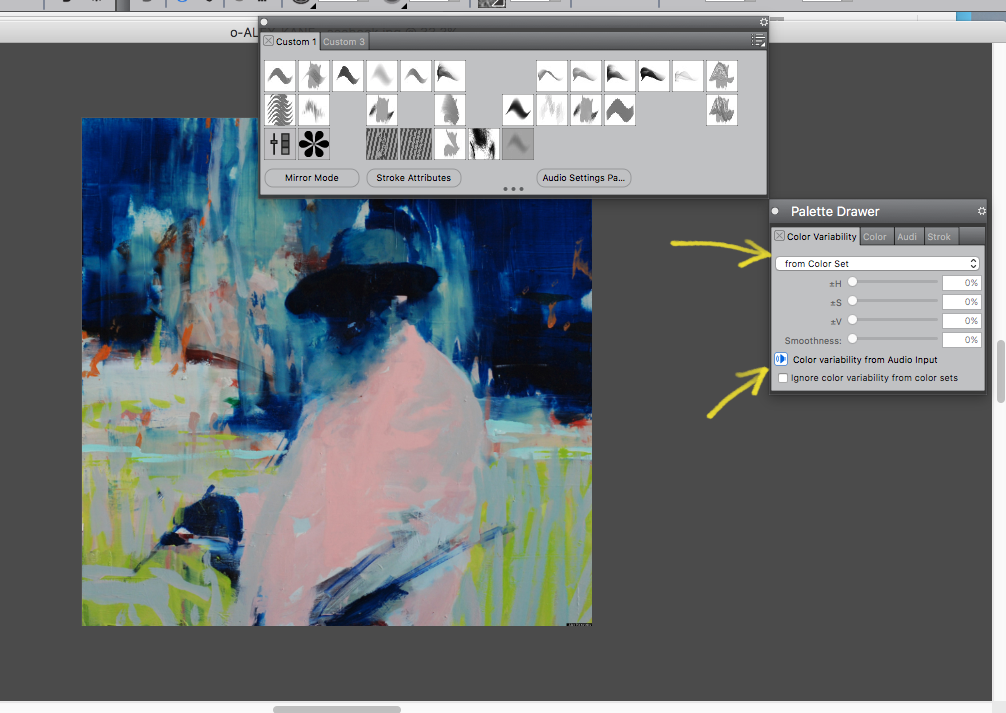
Afterwards go to and select Window/Brush Control Panels/ Color Variability.

In the Color Variability Tab select “from Color Set” and check

“Color variability from Audio Input”.

Now you can play some music from an mp3 and start painting with

Audio Expressions from a color set.

Experiment and see what you can come up with.

Enjoy!


(This post has been in my drafts for nearly a year.  I want to keep expanding on this in the future, so…here you go.)

I’ve been spending hours fiddling with the brush control panels in Corel Painter trying to create usable custom brushes.

Playing with particles, opacity, spacing, blending, damping, global chaos, local chaos, color jitter and a million other settings eventually makes you tired.

This inevitably leads to taking a break to watch youtube videos…

Painter has a feature called audio expression which allows for sound input to influence your brush as you are painting.  I’ve been toying with this a bit so…

Searching YT for audio painting, I found an old video of Android Jones painting with sound in Alchemy:

After watching this I went back into Painter and tried yelling weird noises in my mic while drawing to little effect.

Painter doesn’t have the shape distortion effects that Alchemy has and I don’t think alchemy has been updated in about 7 years.

I then played music mp3’s while painting with Audio Expressions on, but got varied, and very uncontrollable results.  It seems only slightly more useful than random jitter.

Eventually I got to wondering what kind of sound oscillator he has strapped to his tablet.

Having no knowledge of audio equipment I went back to the internet and looked at all kinds of things from MPC’s, to Moog Modulars, DACs, external sound cards, pedals and keyboard synthesizers.

Eventually I laid my eyes on, and immediately ordered,

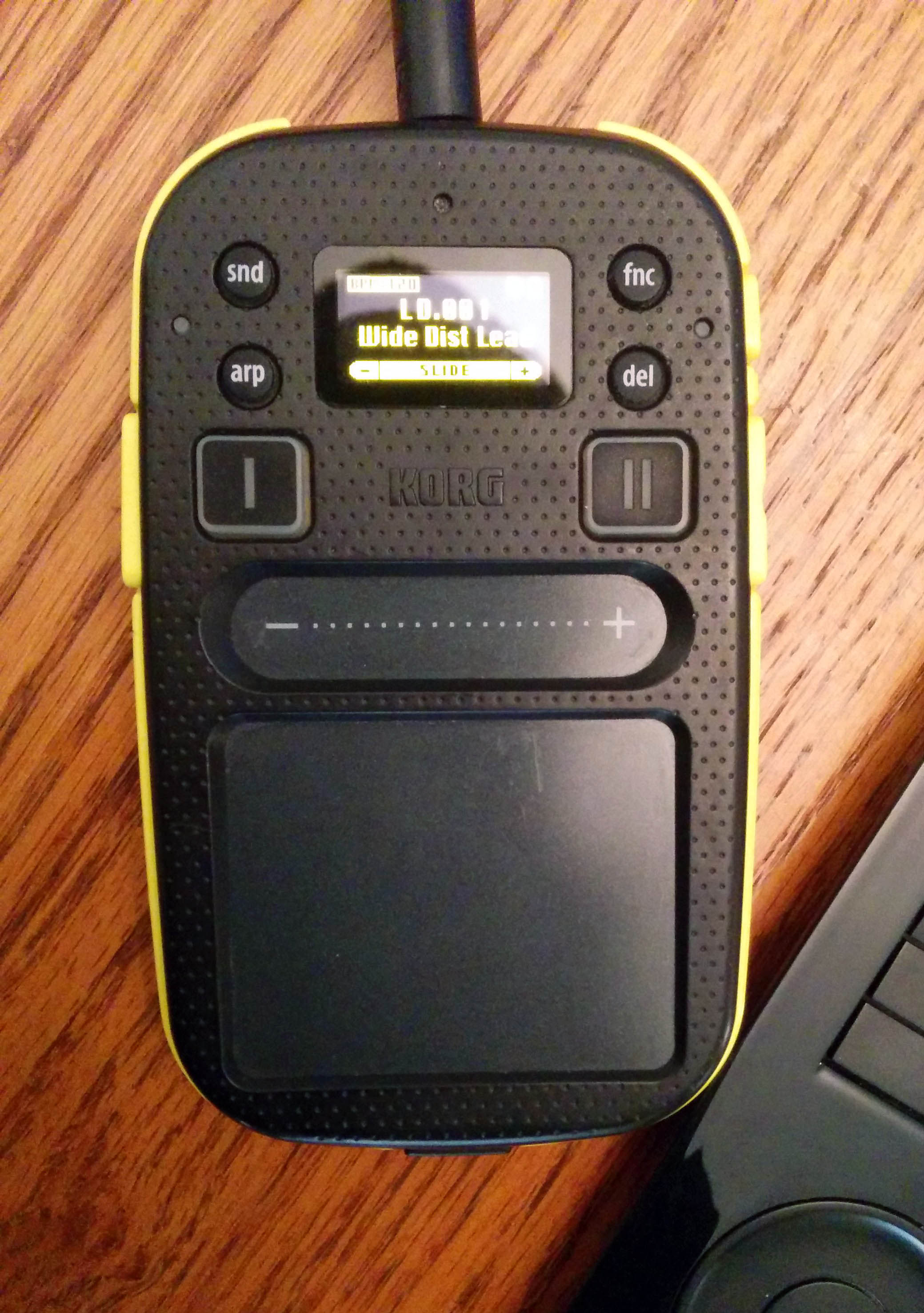
this…

kaossilator2

It’s a Korg Kaossillator 2.

It makes loops, beats and funny noises.  If you plug it into your microphone jack it works directly with Painter’s audio expressions.

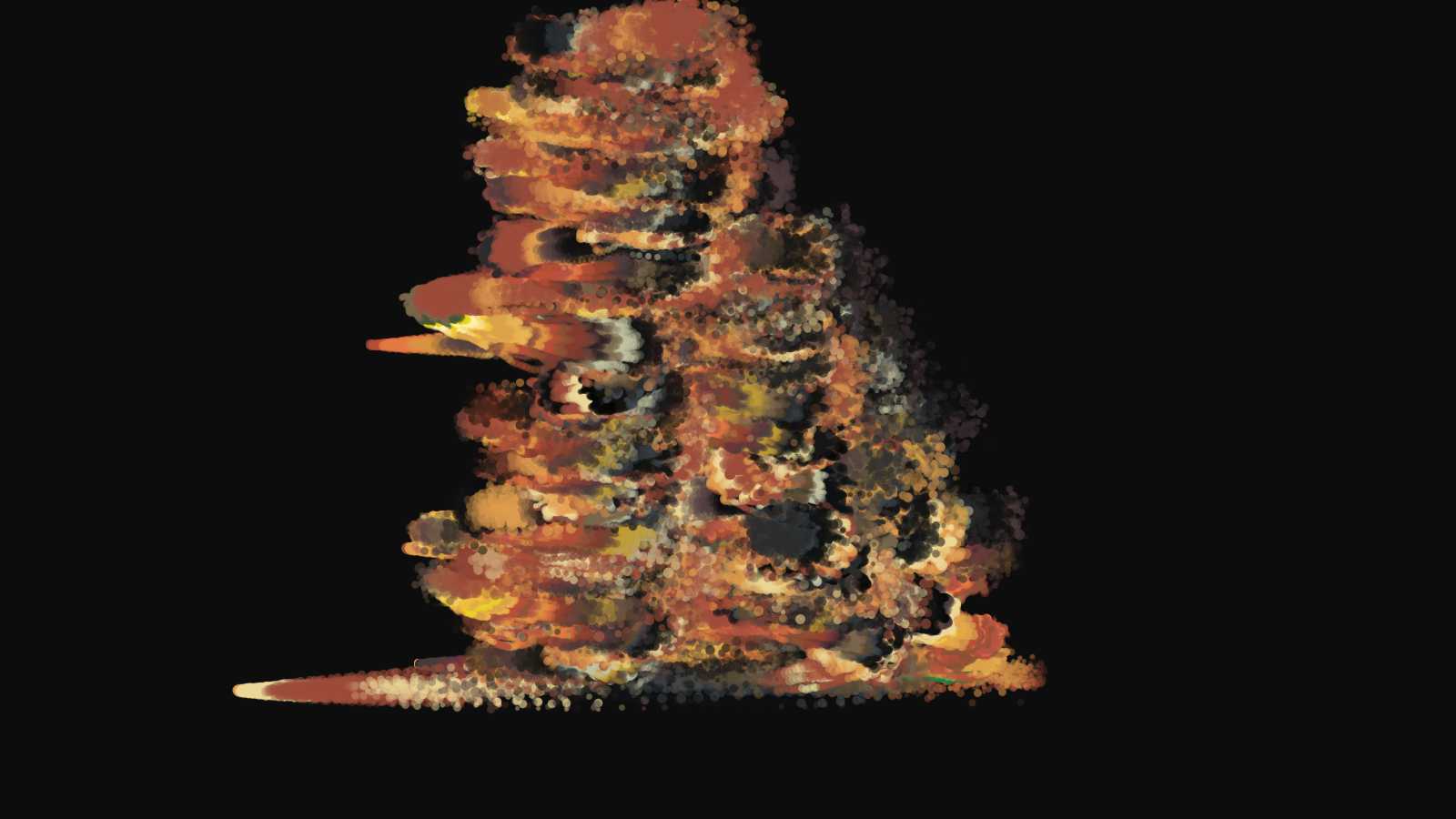
After a lot of tweaking and tinkering I got it to work pretty well with some of my custom brushes.  You can dial in specific colors and get gradients within a single stroke.

Ultimately though, it’s just a fancy way of sliding your volume up and down.

An external audio input device with “audio expression” turned on gives you one more control option for your brush besides tilt, pressure, bearing etc.  So that is pretty nifty.

Still, I look forward to Corel coming up with more in depth ways to incorporate sound into your painting experience, and I will continue to experiment along these lines.

Here’s some messy sketching:

colorset-elfcolorset-practice

korgcolors

They may not look like much but It’s just the beginning.  More neon vomit doodles too come…


Learning the in’s and out’s of Corel Painter 2017.

Playing with the Brush Settings etc.

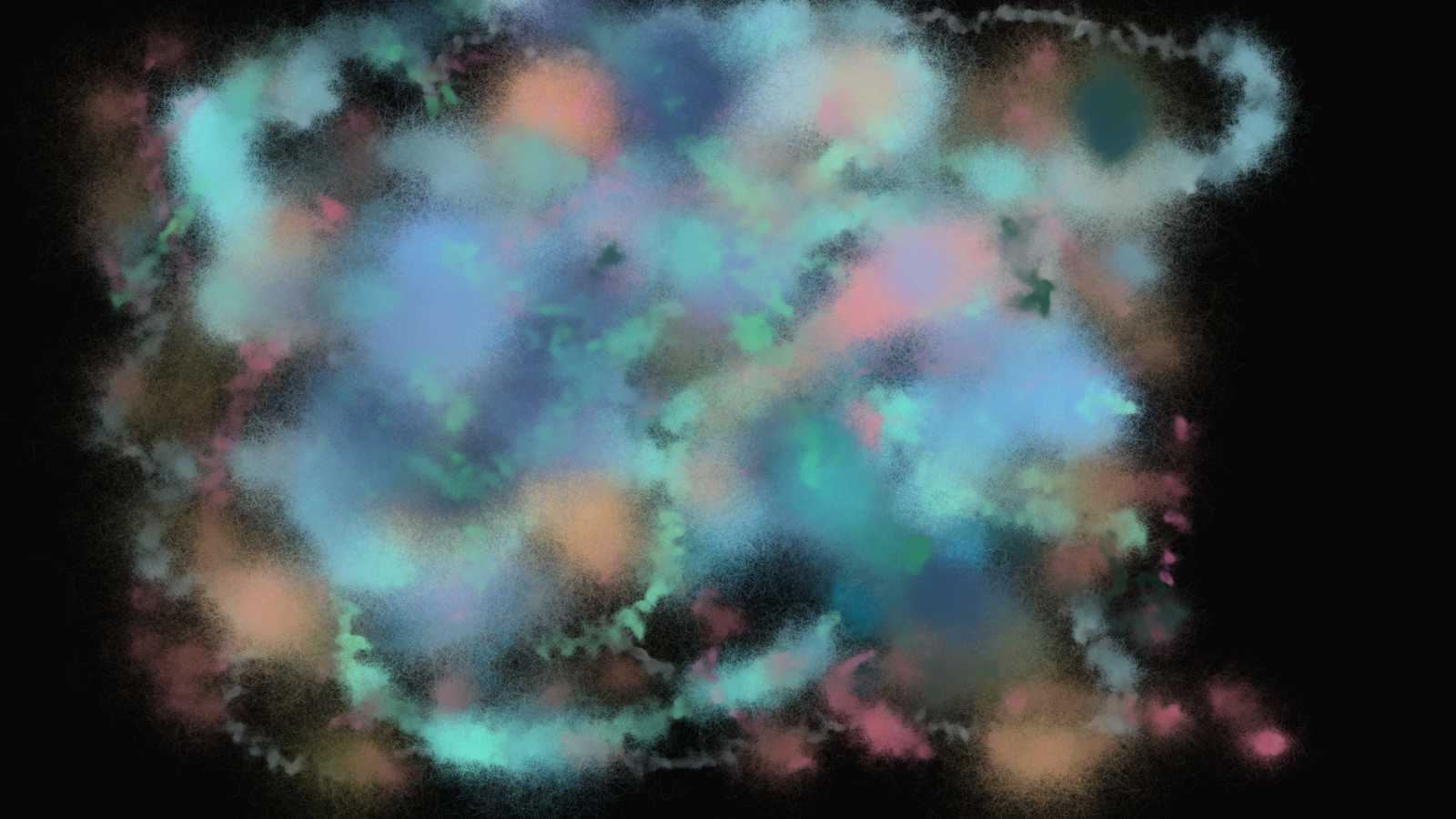
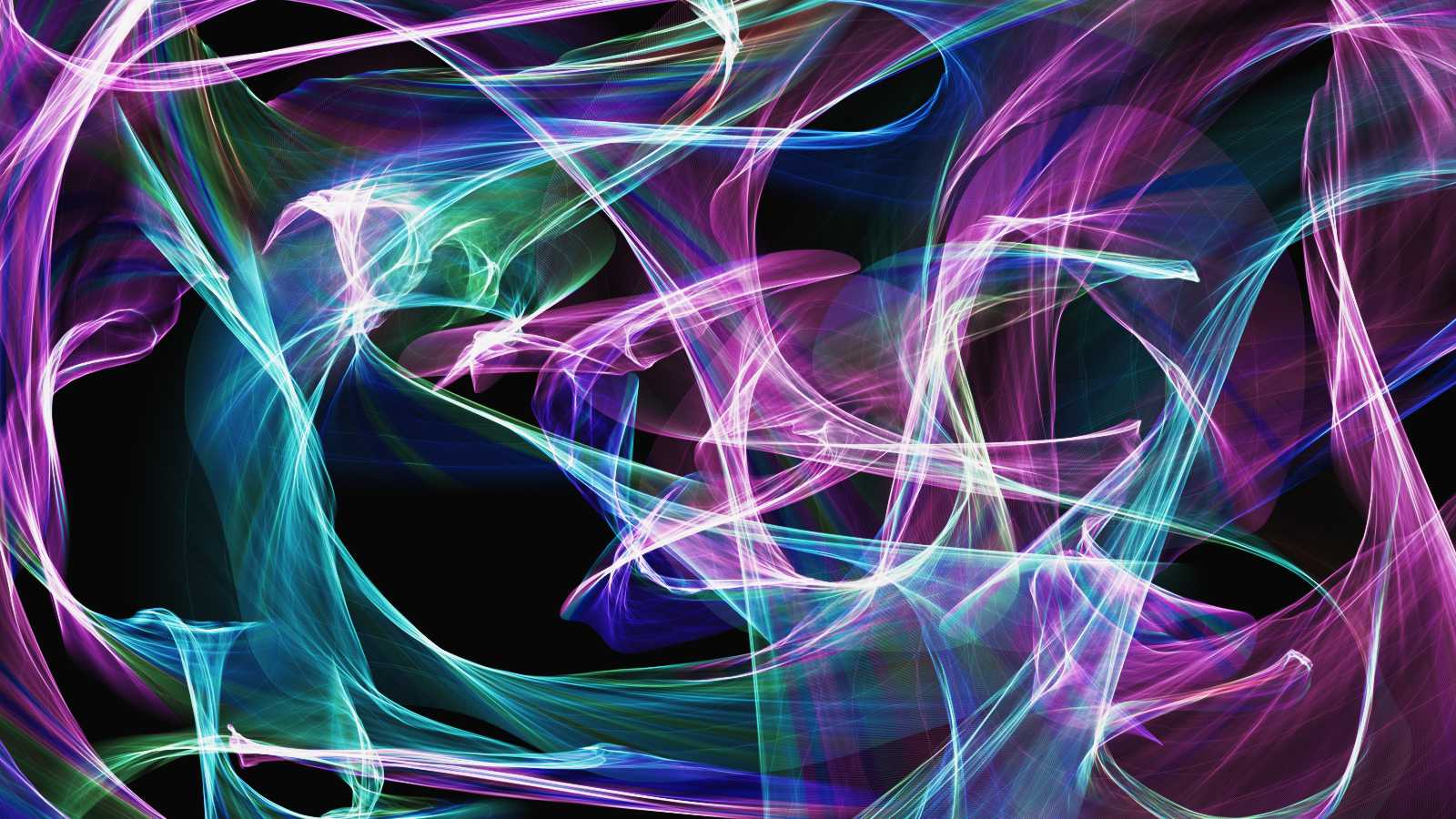
I really like the concept of Audio Expressions, but I’m not sure how useful it actually is.  So far I have only been able to make some interesting textures with it.

painteraudiocut3 oilslickchaincrancolorfukaudiogrid1

More exploration is needed…